Turn notifications on after saying no
Short XRP Mobile tutorial: turn notifications on from Settings, General, after skipping them during setup. The switch hands over to iOS, which only asks for this permission once per install, so if you denied it long ago you have to allow it from the phone's own settings instead.
You tapped I'll do it later when you set the wallet up, and now you only find out money arrived when you happen to open the app. Two taps fixes that.
Prefer to read? The steps below are the same walkthrough, 6 screens and 39 seconds of video.
1. Open XRP Mobile
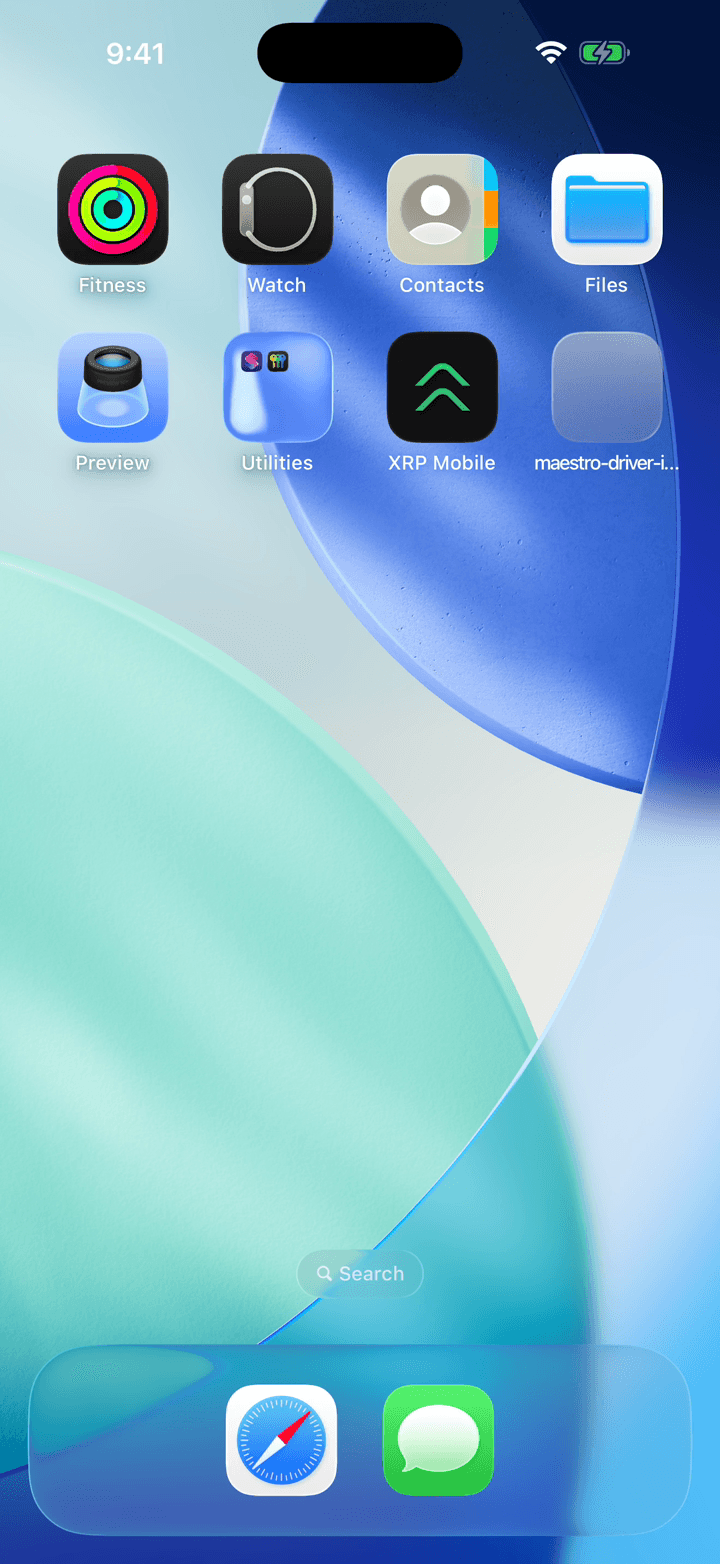
Open the app. Nothing you skipped during setup is lost: every one of those choices lives in settings afterwards.
2. Unlock as usual
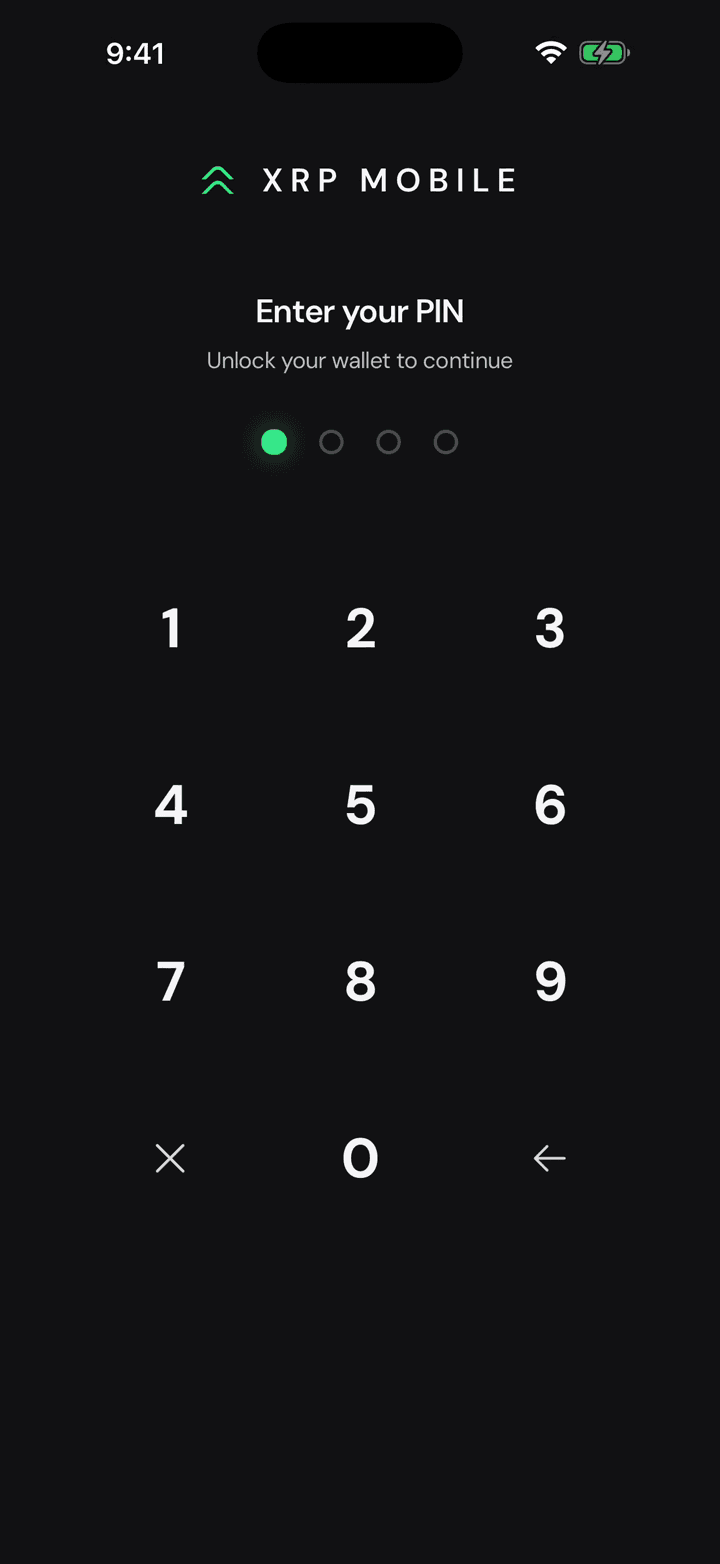
Unlock with your PIN, or your face if you turned that on.
3. Settings, General
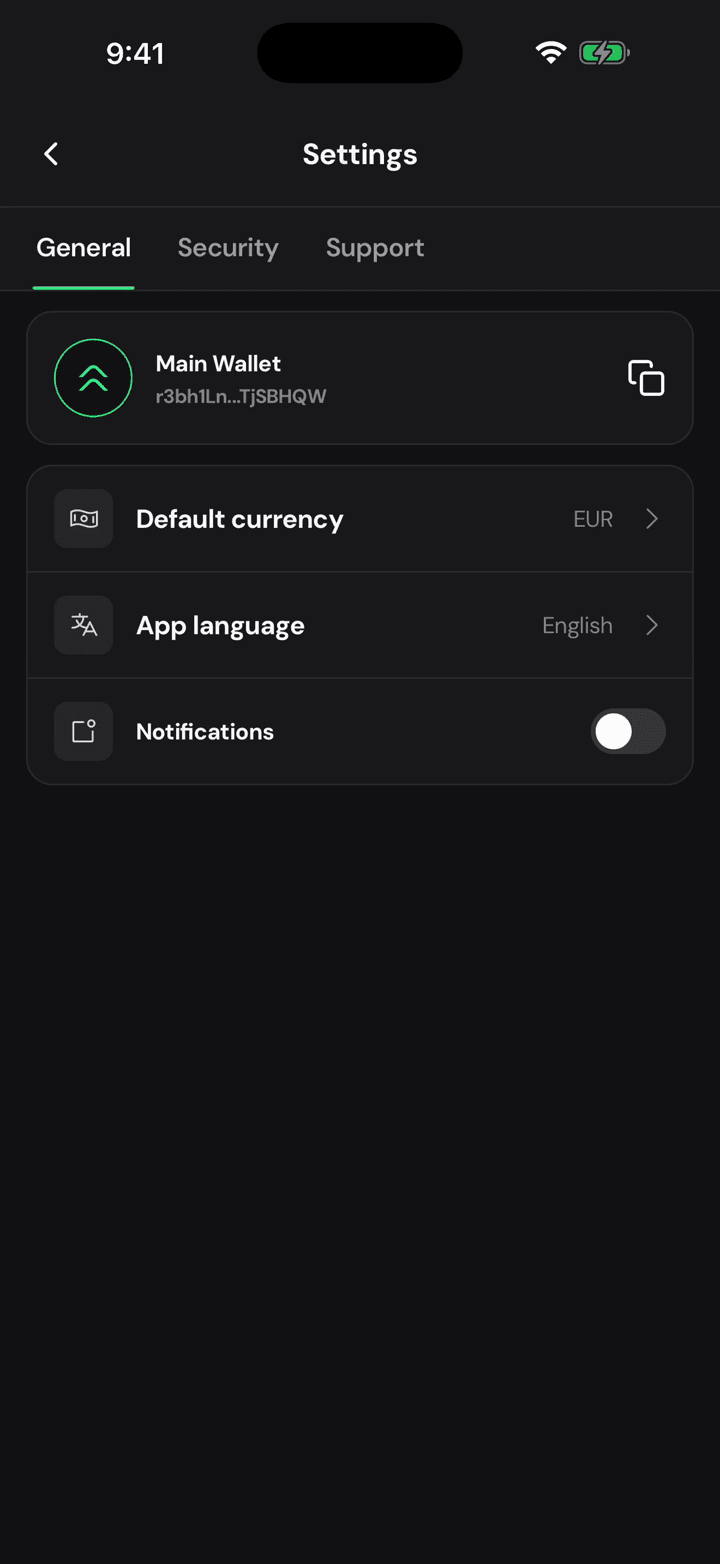
Tap the gear and stay on General. Notifications sits under your currency and your language.
4. Flip it on
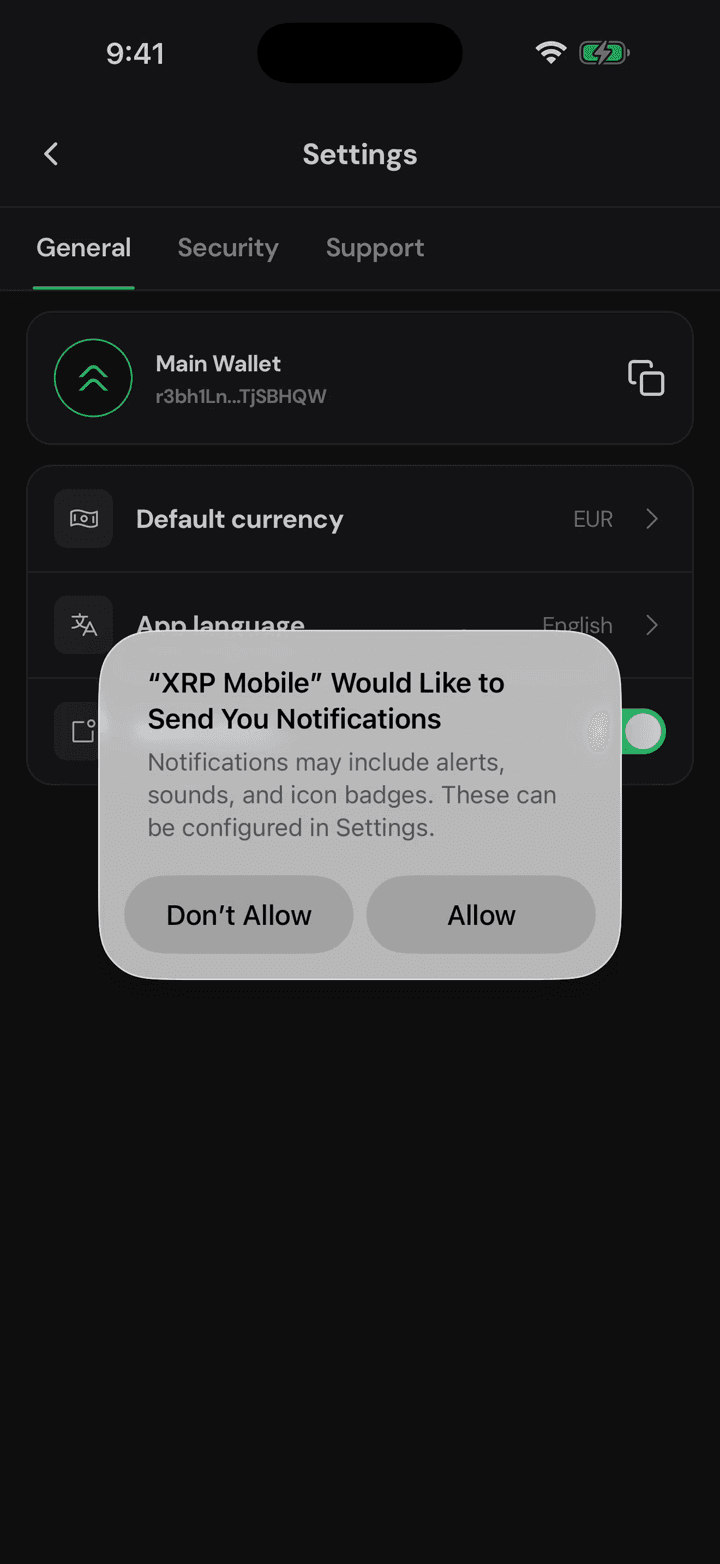
Flip the switch, and iOS steps in, because this permission belongs to the phone rather than to the app.
5. The phone asks, once
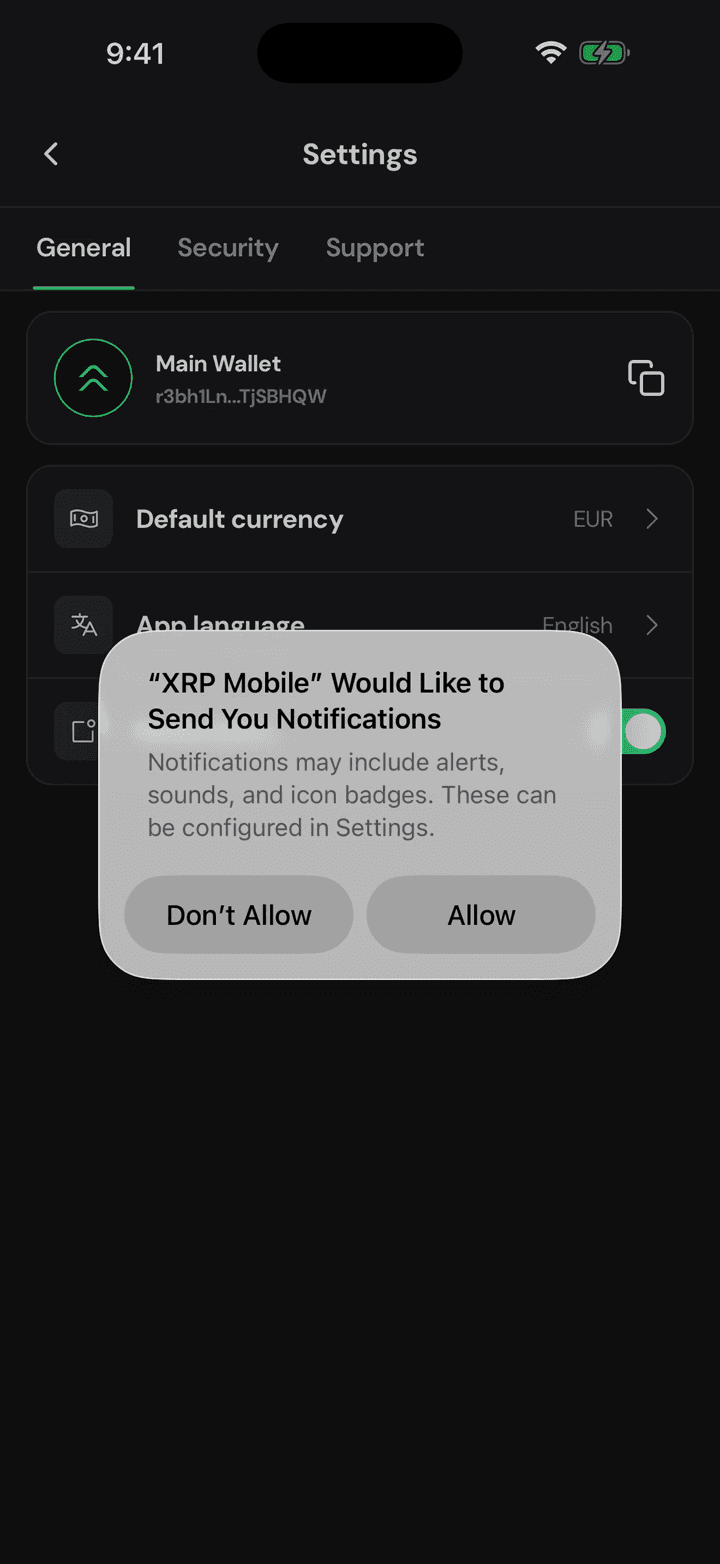
Tap Allow. iOS only ever asks this once per install, so if you said no long ago the app cannot ask again and this switch would sit there doing nothing.
6. Now you'll know
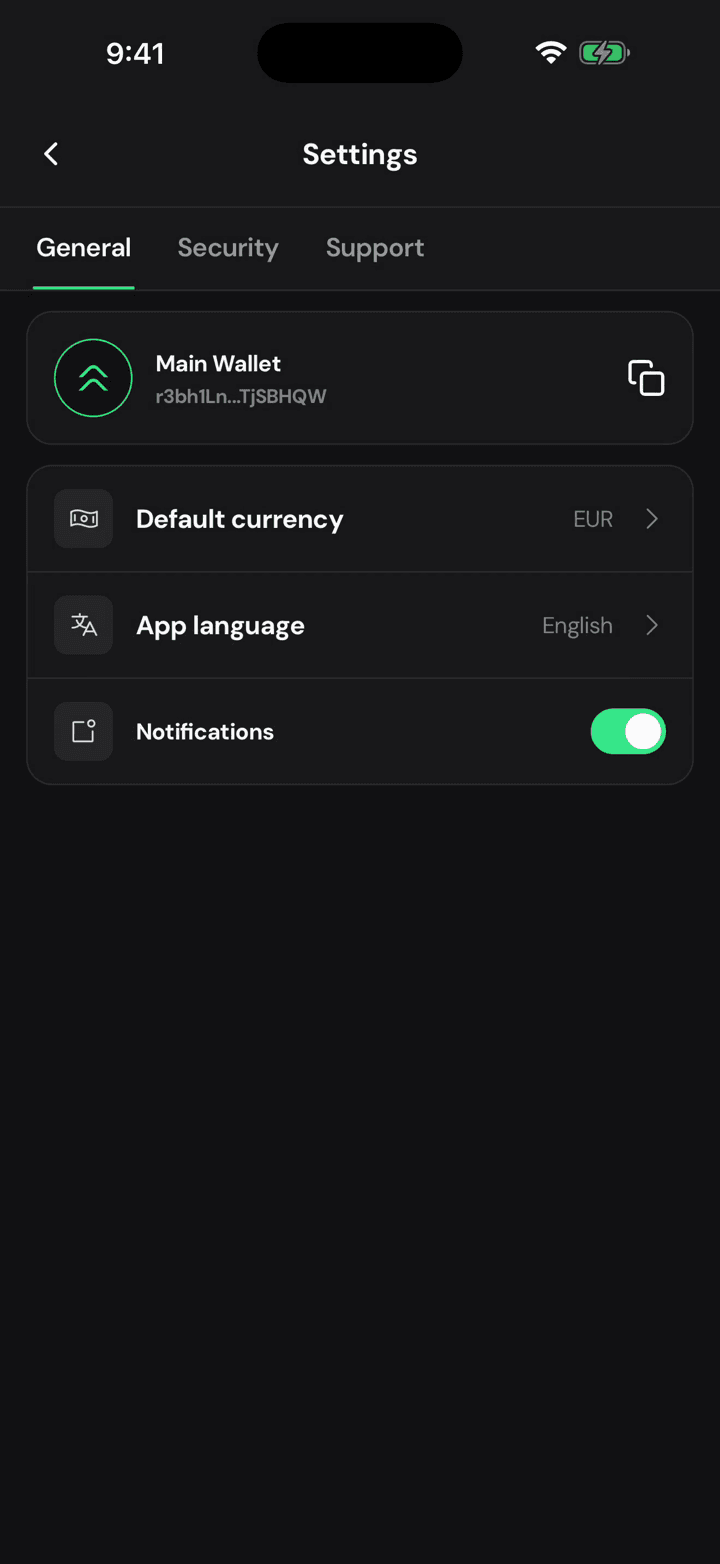
Done. From here you hear about money arriving the moment it lands, instead of the next time you happen to look.
Switch the app language
Short XRP Mobile tutorial: change the app language from Settings. XRP Mobile ships fully translated in 13 languages, and the switch is instant. Your wallet, your keys and your balances are untouched.
Get help from a human
Short XRP Mobile tutorial: find help from the Support tab. Start a chat with the team, or read the built in FAQ that covers the questions we get most, why 1 XRP is locked in your wallet, how swaps work, where multichain tokens are held, and why a deposit can take a few minutes. Nobody from XRP Mobile will ever ask for your recovery phrase.