Change your PIN
Short XRP Mobile tutorial: change your wallet PIN from Settings, Security. The app asks for your current PIN before it lets you set a new one, so nobody holding your unlocked phone can change it blind. The new PIN unlocks the app and signs every transaction from then on.
If anyone has seen you type your PIN, change it. It takes about twenty seconds, and the app makes sure it is really you first.
Prefer to read? The steps below are the same walkthrough, 6 screens and 34 seconds of video.
1. Settings, then Security
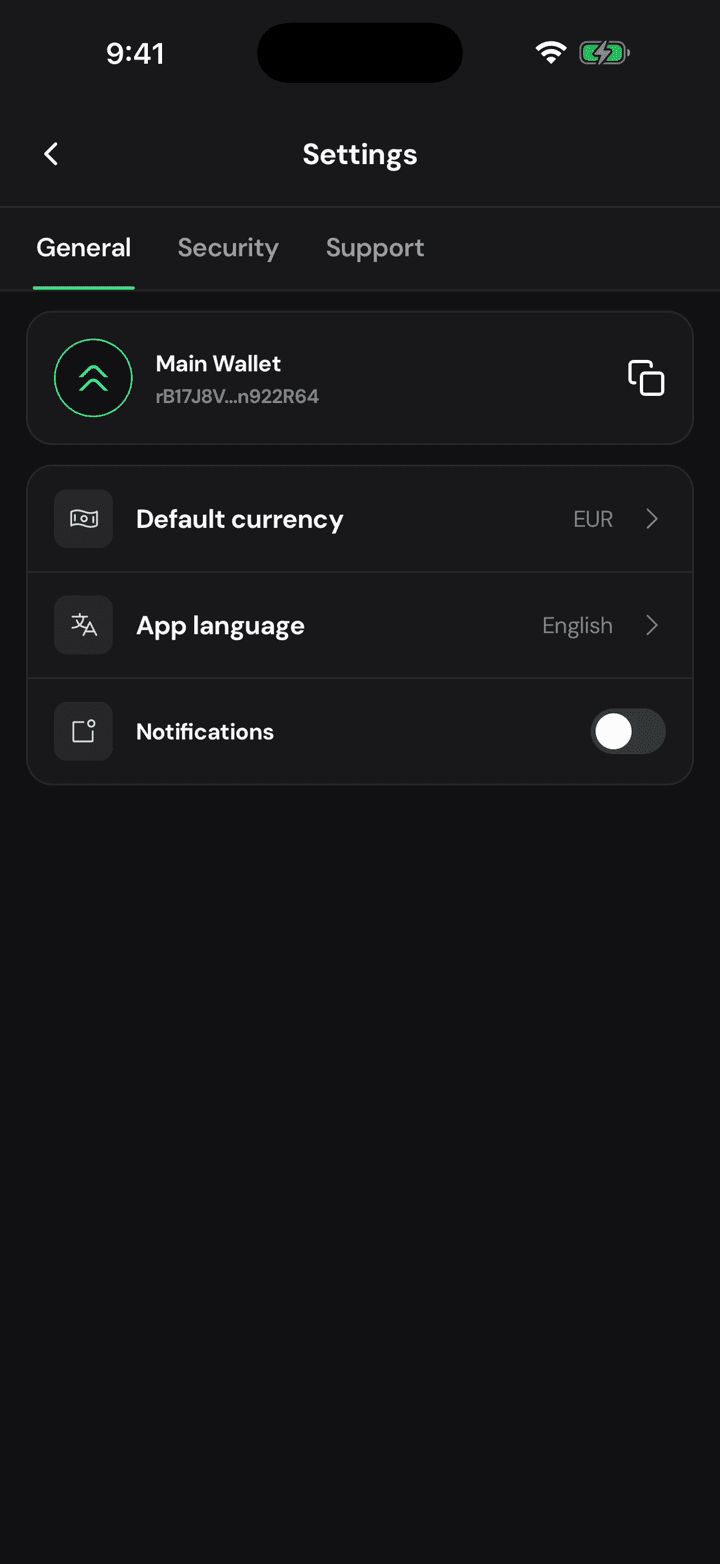
Open the gear and move to the Security tab. This is where the PIN, your backup and deleting your data all live.
2. Tap Change passcode
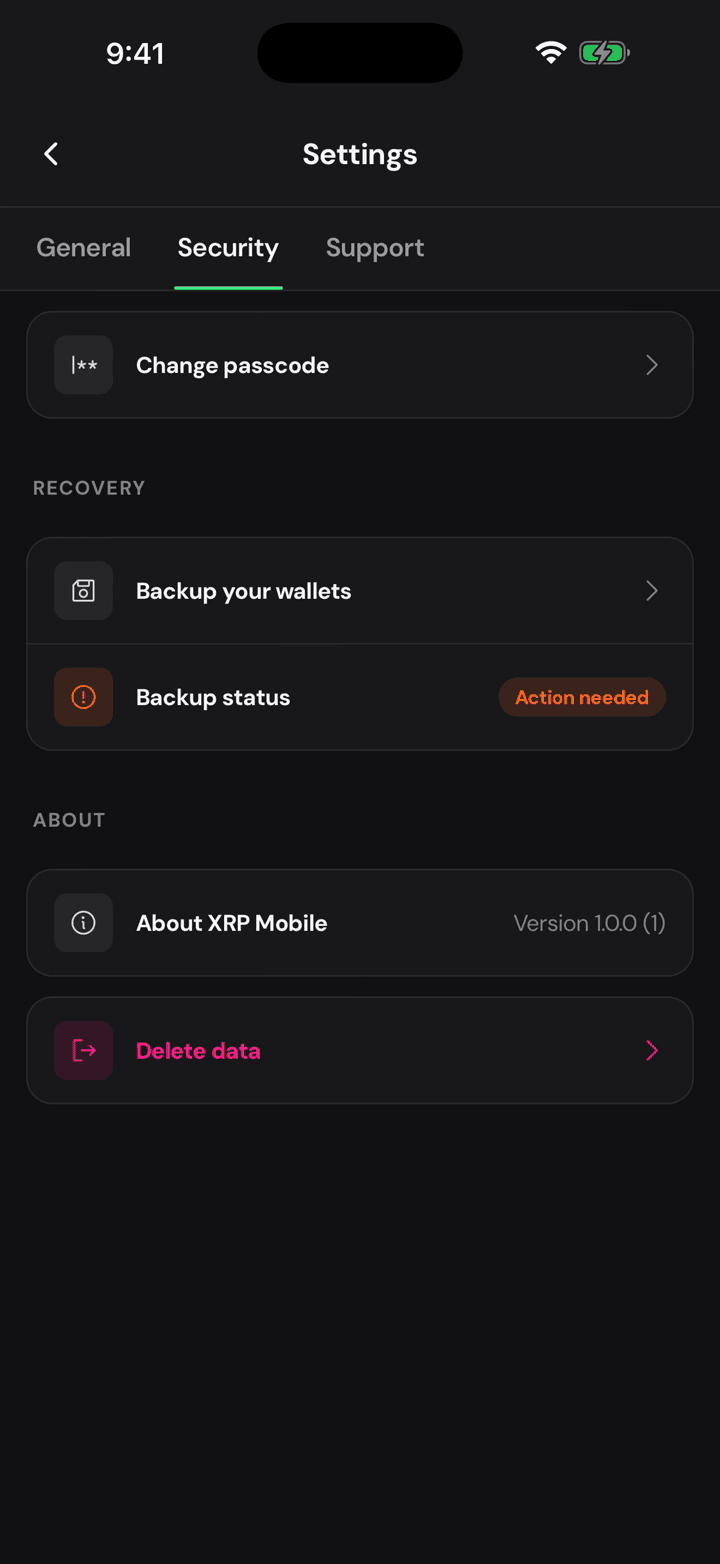
Tap Change passcode.
3. Prove it is you first
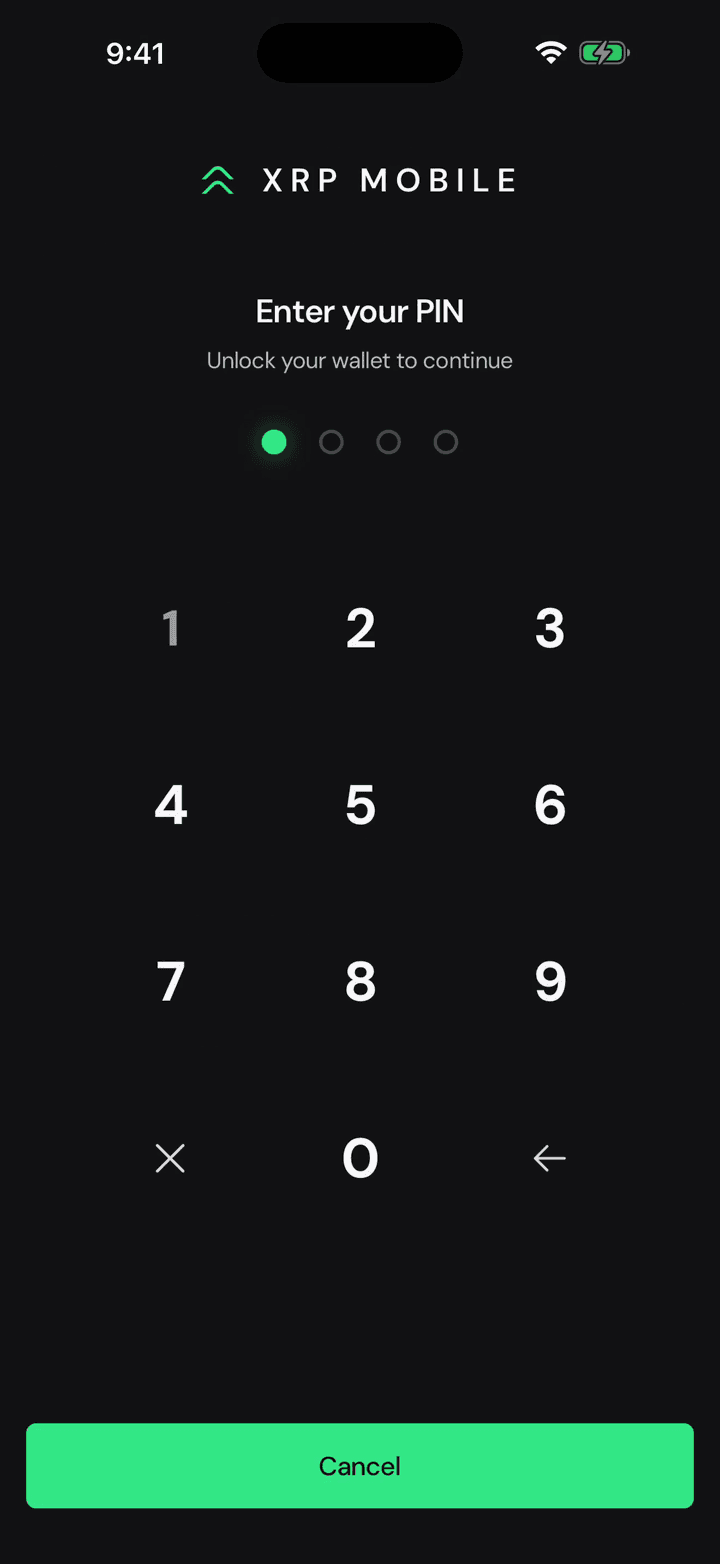
It asks for the PIN you have now before it lets you set a new one. Someone holding your unlocked phone still cannot change it blind.
4. Enter the new PIN
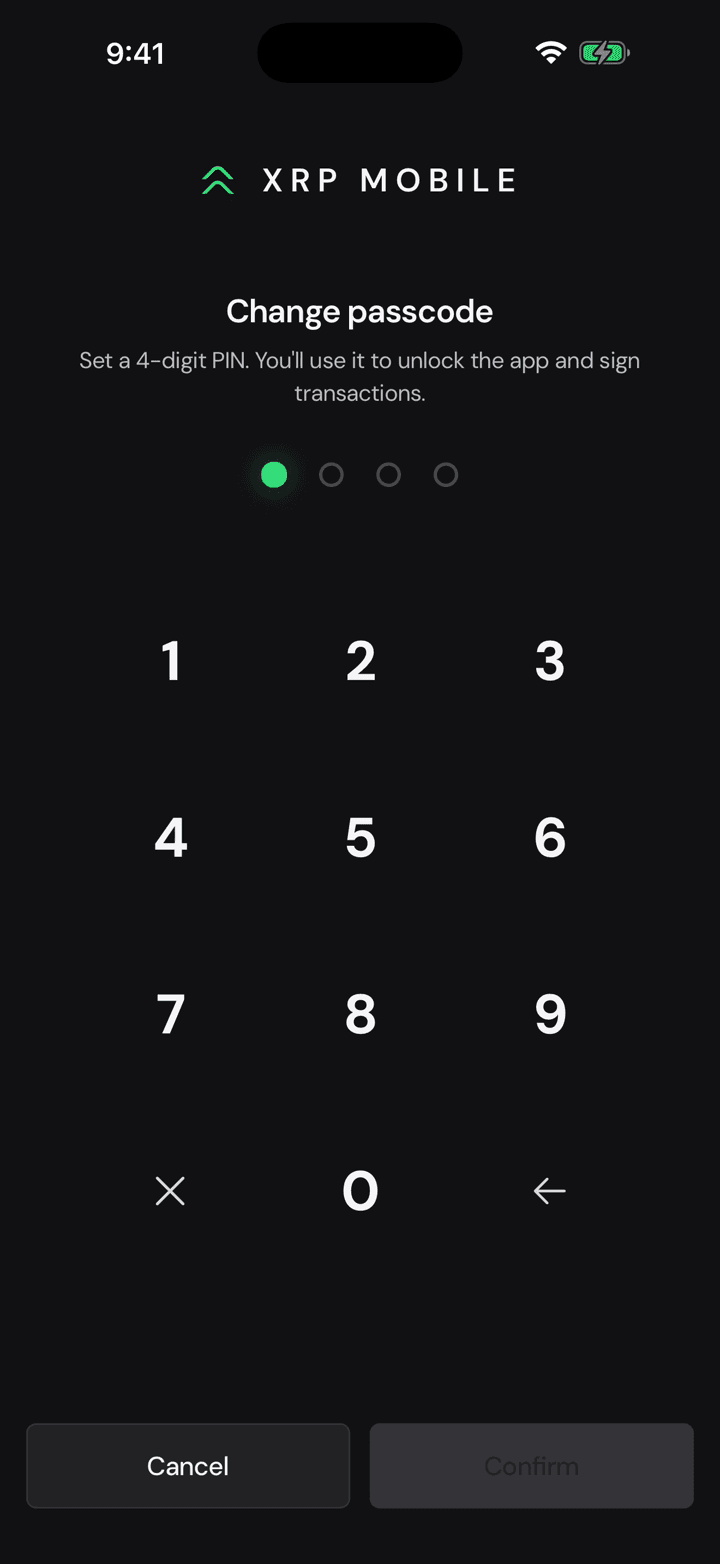
Now the new one. Four digits, and please not your year of birth or the code to your front door.
5. Confirm it
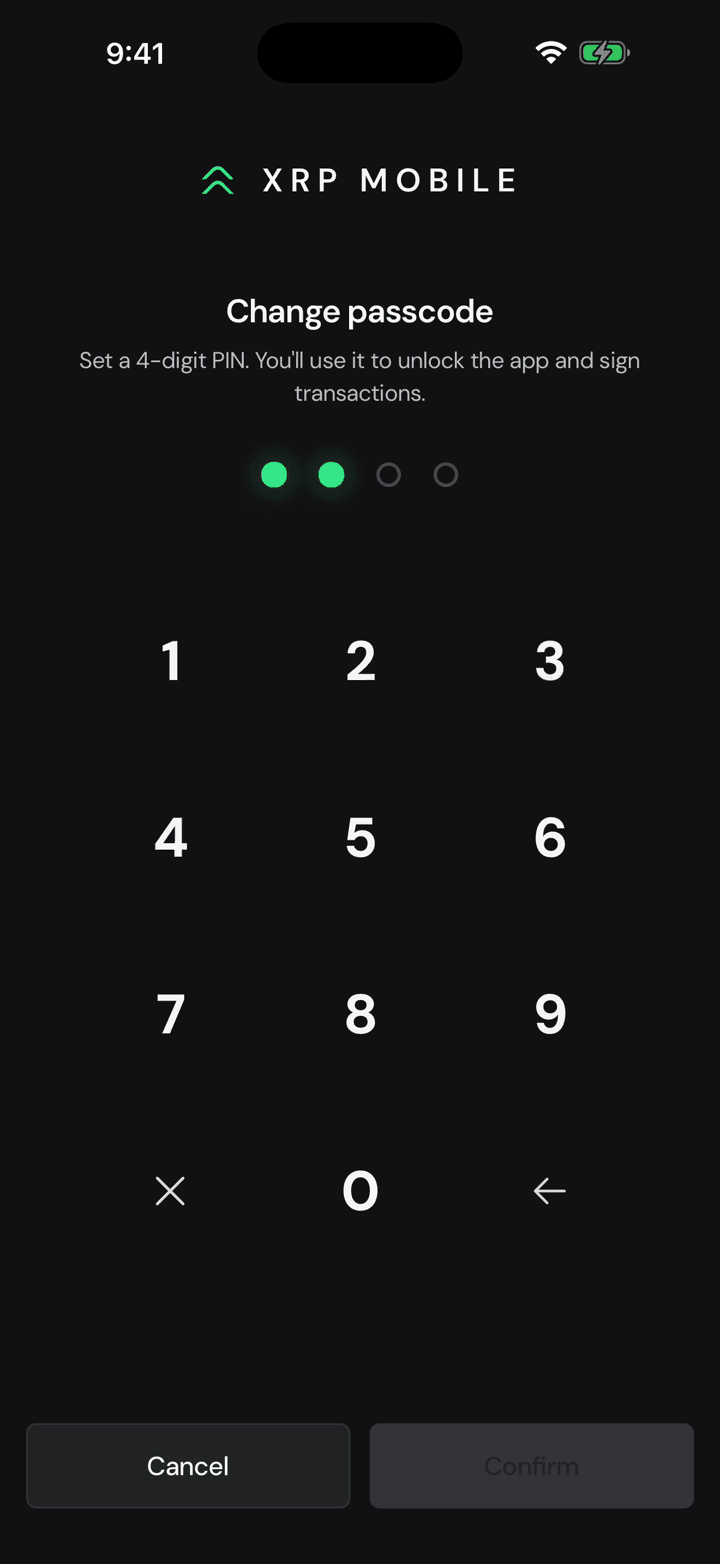
Type it again to confirm. If the two do not match, nothing changes and you start over.
6. Changed
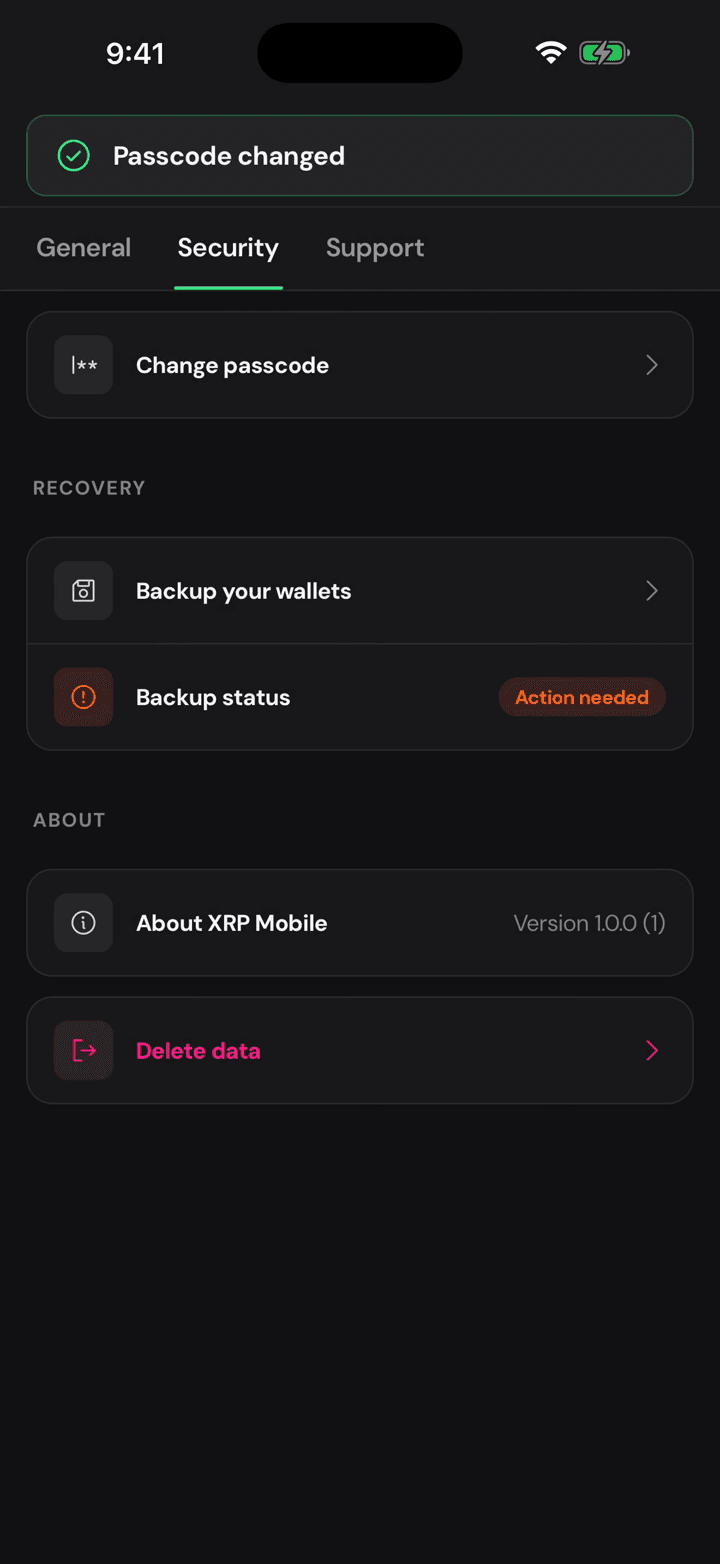
Changed. The new PIN unlocks the app and signs your transactions from now on.
Read your activity
Short XRP Mobile tutorial: read your transaction history. Switch the wallet home from balances to activity, find any payment sent or received, and open its receipt: counterparty, network fee, date, status and the transaction hash you can check on a public XRP Ledger explorer. Also, what those tiny incoming amounts you never asked for are, and why you should ignore them.
Unlock with Face ID
Short XRP Mobile tutorial: enable biometric authentication from Settings, Security, and open your wallet with Face ID instead of a PIN. The app locks as soon as it leaves the screen, iOS answers the biometric check itself so no face data ever reaches XRP Mobile, and your PIN still works as a fallback.