Import a wallet with your recovery phrase
Step by step XRP Mobile tutorial: import an existing XRP Ledger wallet using its 12 word recovery phrase. Type the words in order or paste them, name the wallet, set a device PIN, and your account comes back with the same address and the same balance. The keys stay on your phone, and the PIN is local to the device.
You already have an XRP wallet somewhere else. Here is how to bring it into XRP Mobile, with the same address and the same balance.
Prefer to read? The steps below are the same walkthrough, 5 screens and 33 seconds of video.
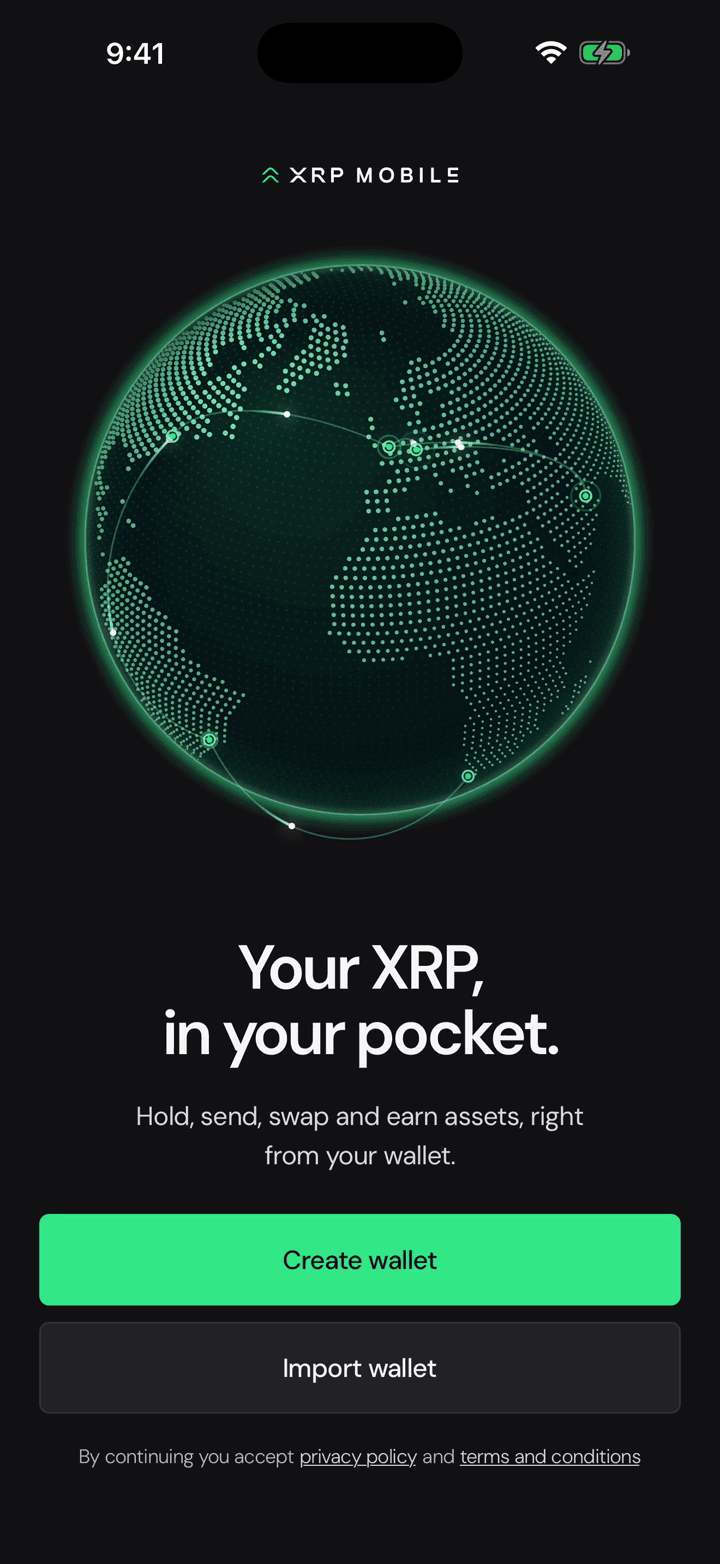
1. Tap Import wallet
From the welcome screen, tap Import wallet instead of creating one.
2. Choose recovery phrase
Pick recovery phrase. That is the 12 words almost every wallet gives you when you first set it up.
3. One word per box
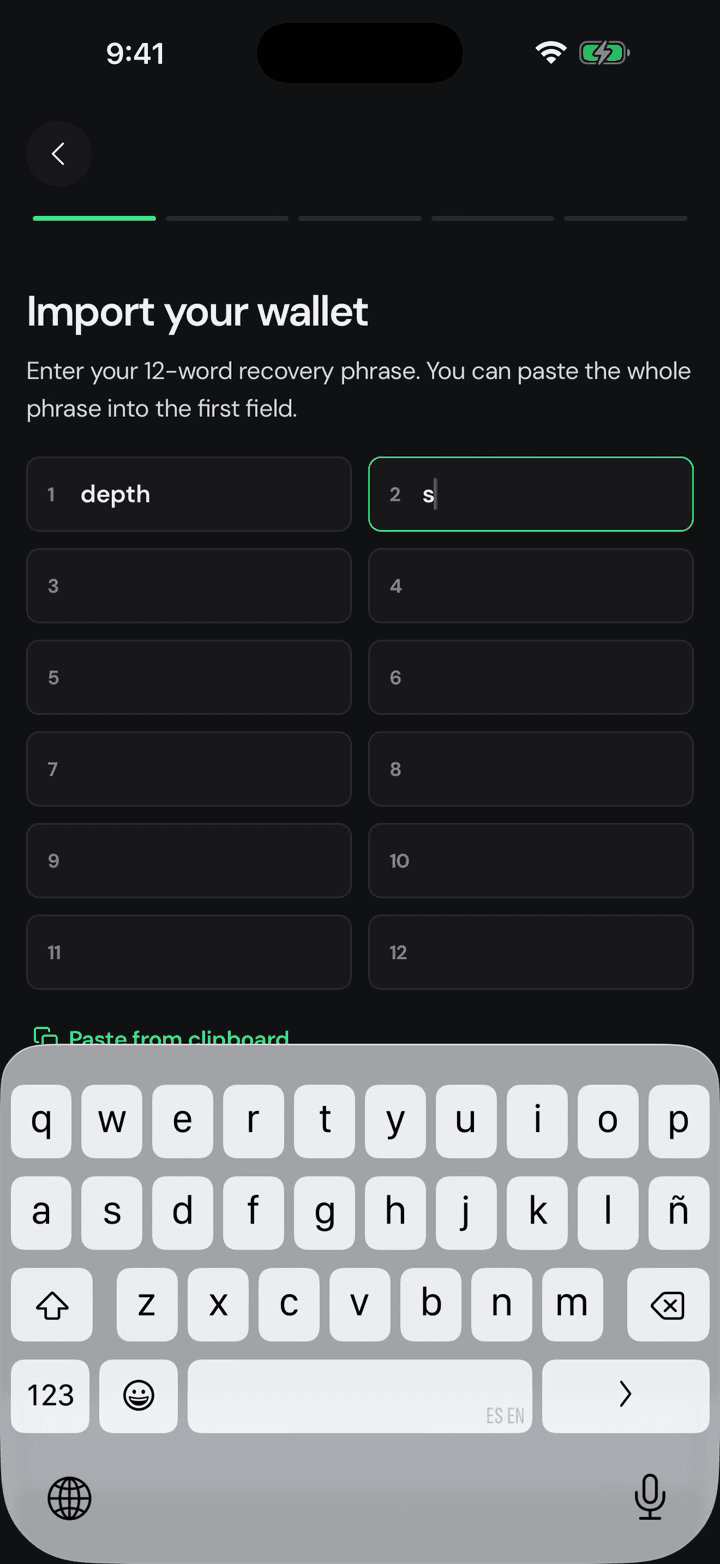
Type your words in order, one per box. There is a paste button if you keep them in a password manager, and the app checks the phrase is valid before it lets you continue.
4. Name it and set a PIN
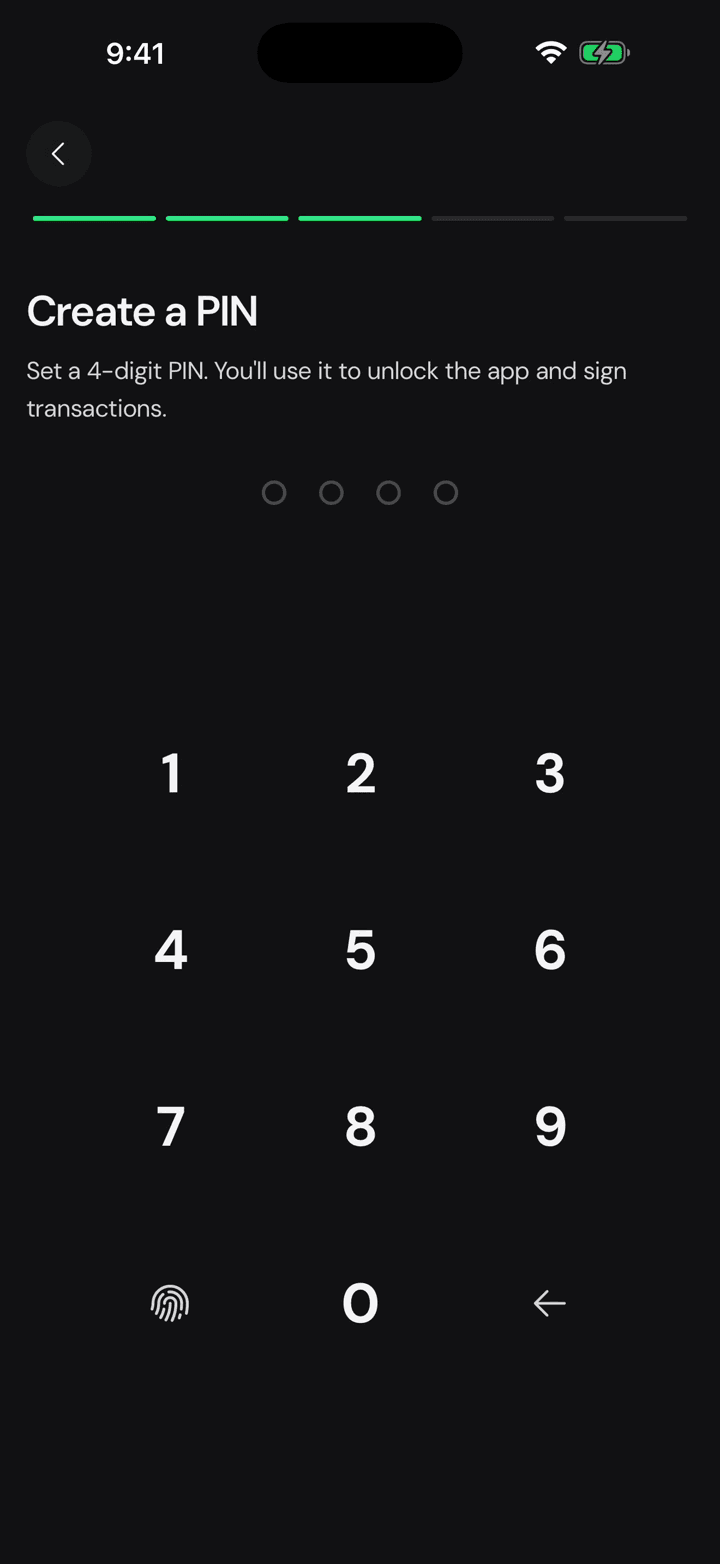
Give it a name and set a PIN for this device. The PIN is local: it protects the app on this phone, it is not part of your wallet.
5. Same wallet, new phone
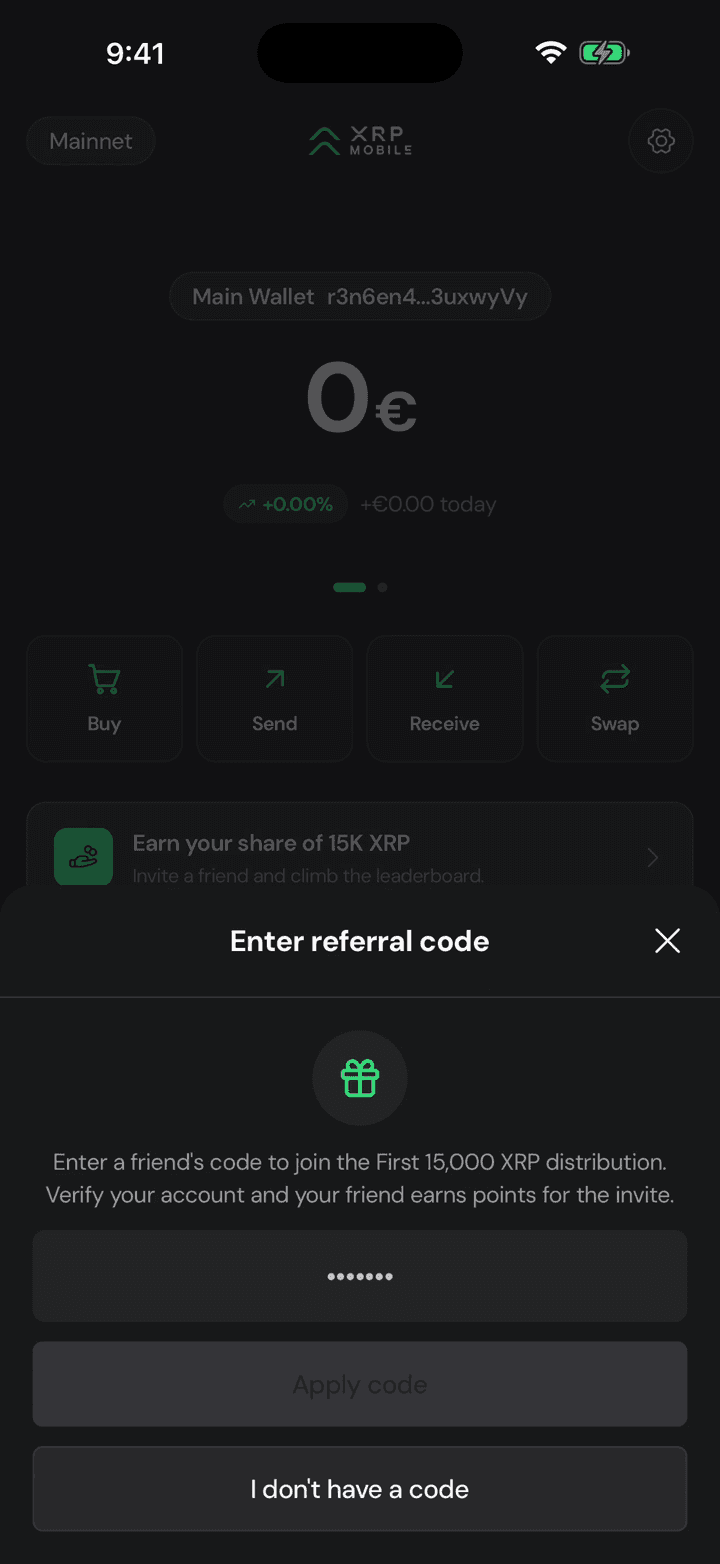
And there it is. Same address, same balance, and the keys never left your hands.
Your first minute in XRP Mobile
Just installed XRP Mobile? This short tour walks through every tab: the Wallet home with buy, send, receive and swap, the Earn roadmap, the Explore market, the Share referral campaign, and the settings behind the gear. A good first watch before any other tutorial.
Import your Xaman account with secret numbers
Step by step XRP Mobile tutorial: import an existing XRP Ledger account using the 8 rows of secret numbers that Xaman gives you as a backup. Type the rows in order, watch each one validate its own checksum, set a device PIN, and the account comes back with the same address and balance. Never share your secret numbers with anyone.