Unlock with Face ID
Short XRP Mobile tutorial: enable biometric authentication from Settings, Security, and open your wallet with Face ID instead of a PIN. The app locks as soon as it leaves the screen, iOS answers the biometric check itself so no face data ever reaches XRP Mobile, and your PIN still works as a fallback.
Typing a PIN every time you open your wallet gets old, and every time you type it in public someone could be watching. Use your face instead.
Prefer to read? The steps below are the same walkthrough, 5 screens and 37 seconds of video.
1. Settings, then Security
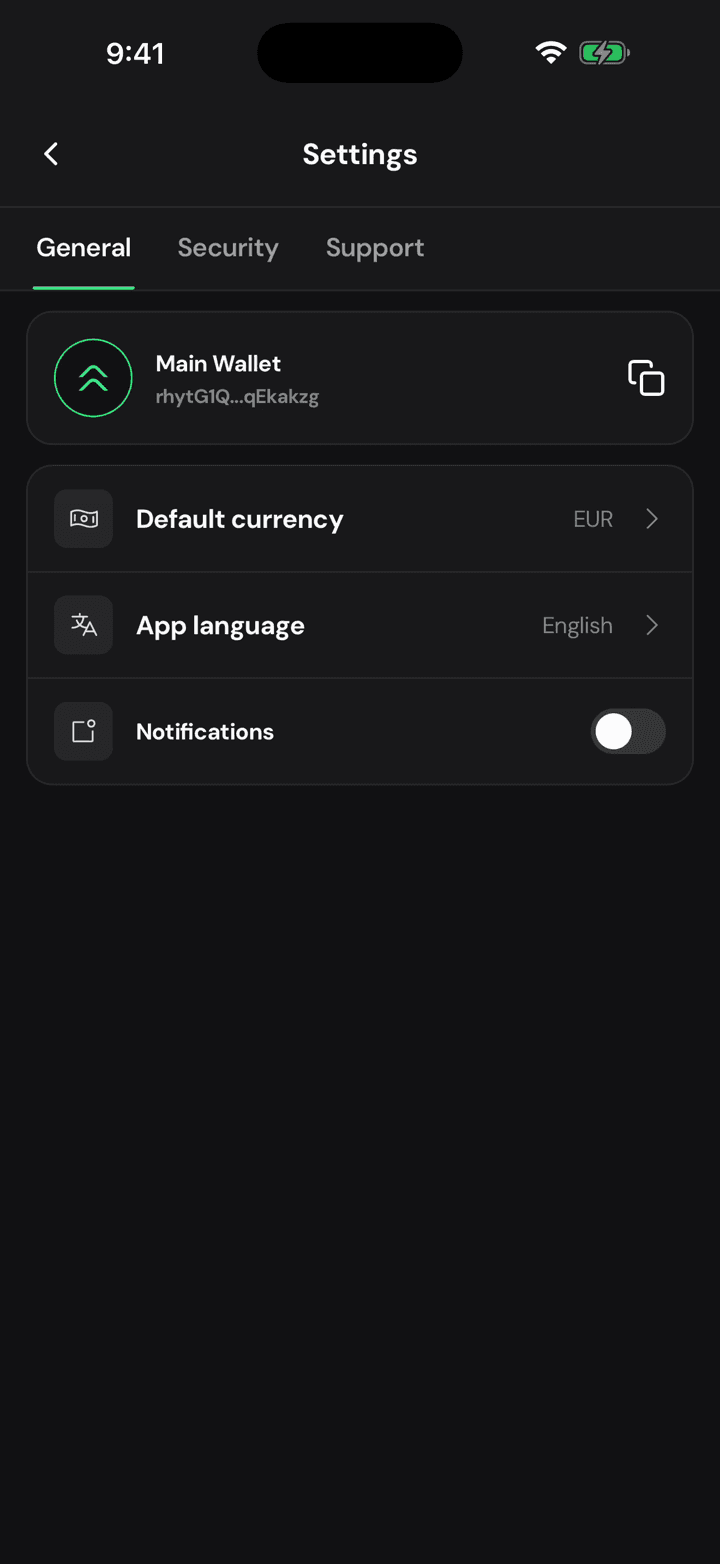
Open the gear and move to Security. Biometric authentication sits at the top, and it only appears if your phone actually has a face or a fingerprint enrolled.
2. Flip the switch
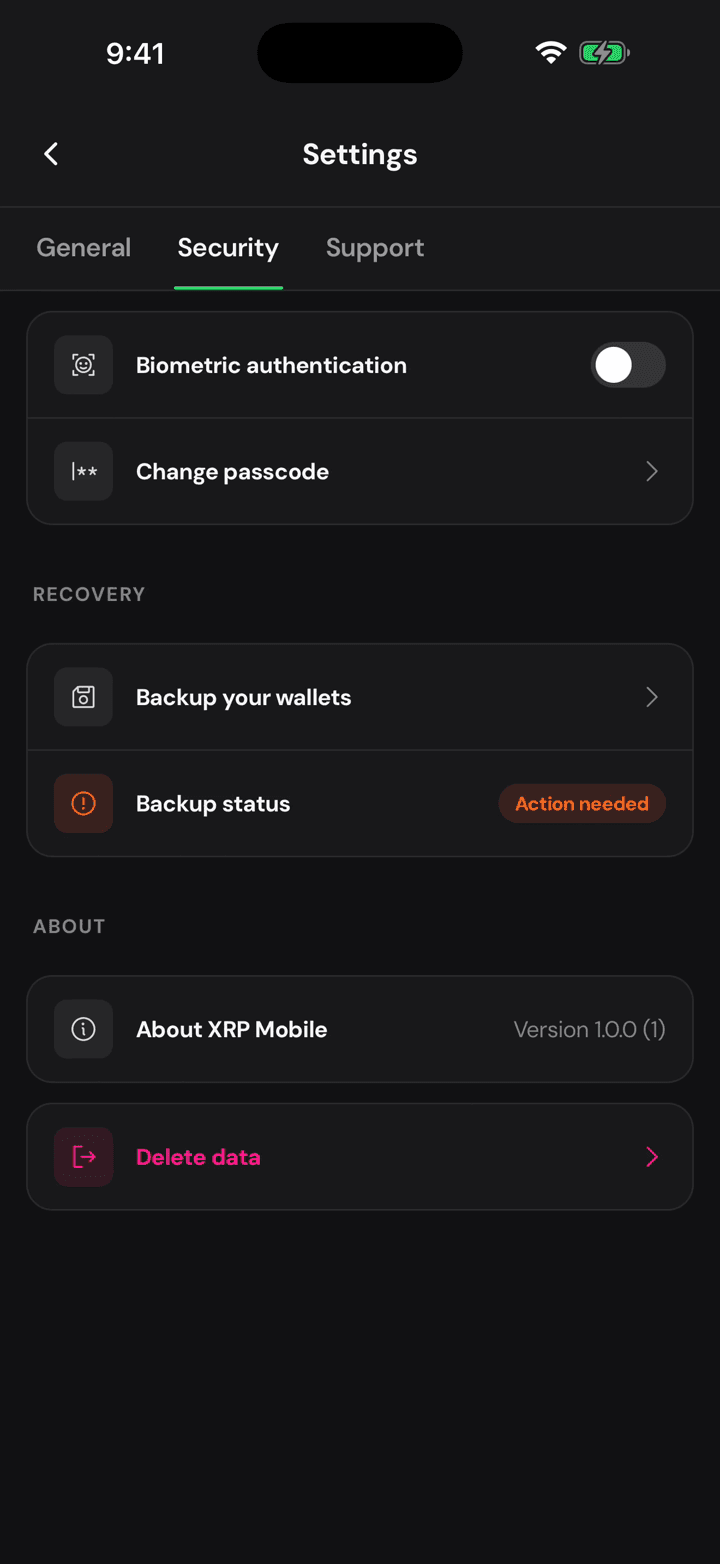
Turn it on, and the phone asks you to prove yourself before it will accept the change.
3. Your face never leaves the phone
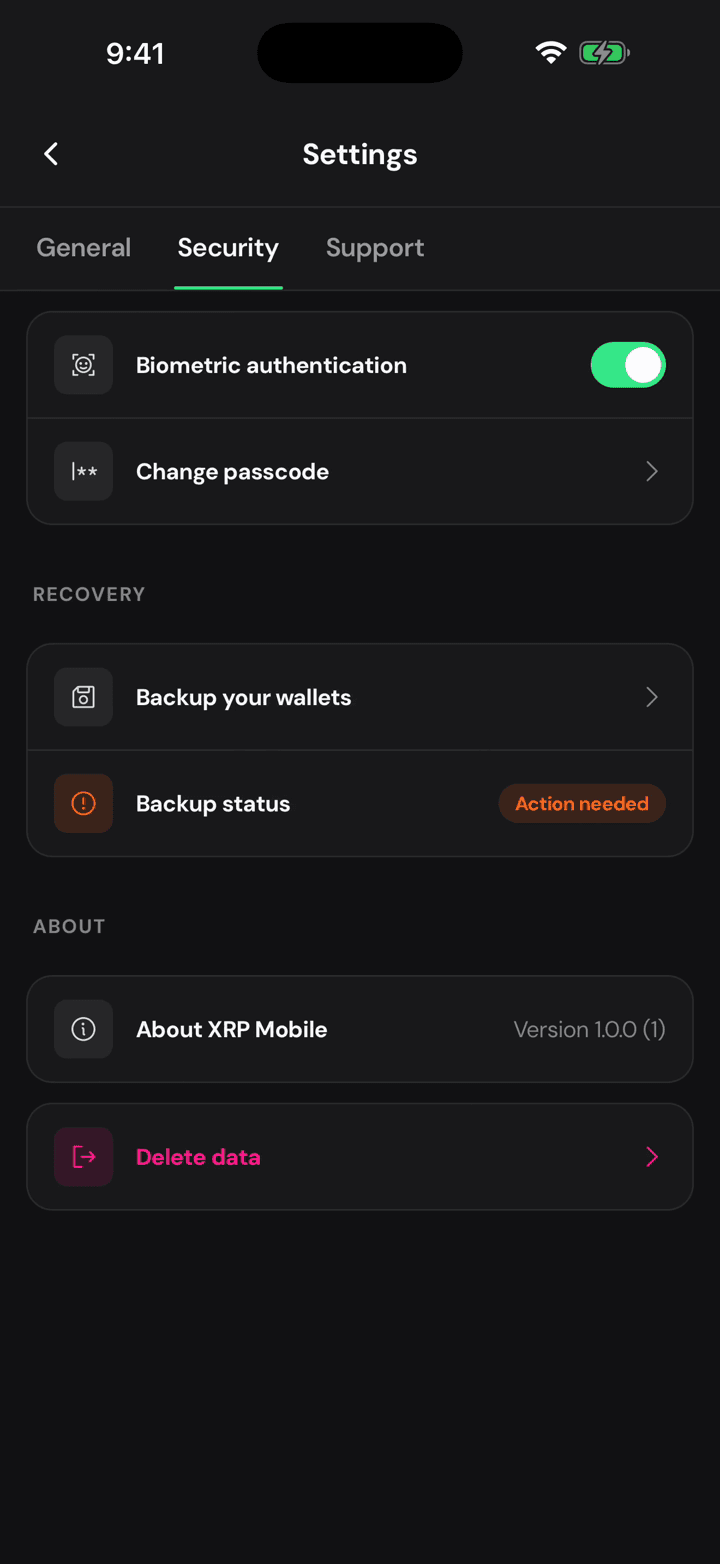
Nothing about your face reaches XRP Mobile. iOS answers yes or no, and that is all the app ever sees.
4. Close the app to test it
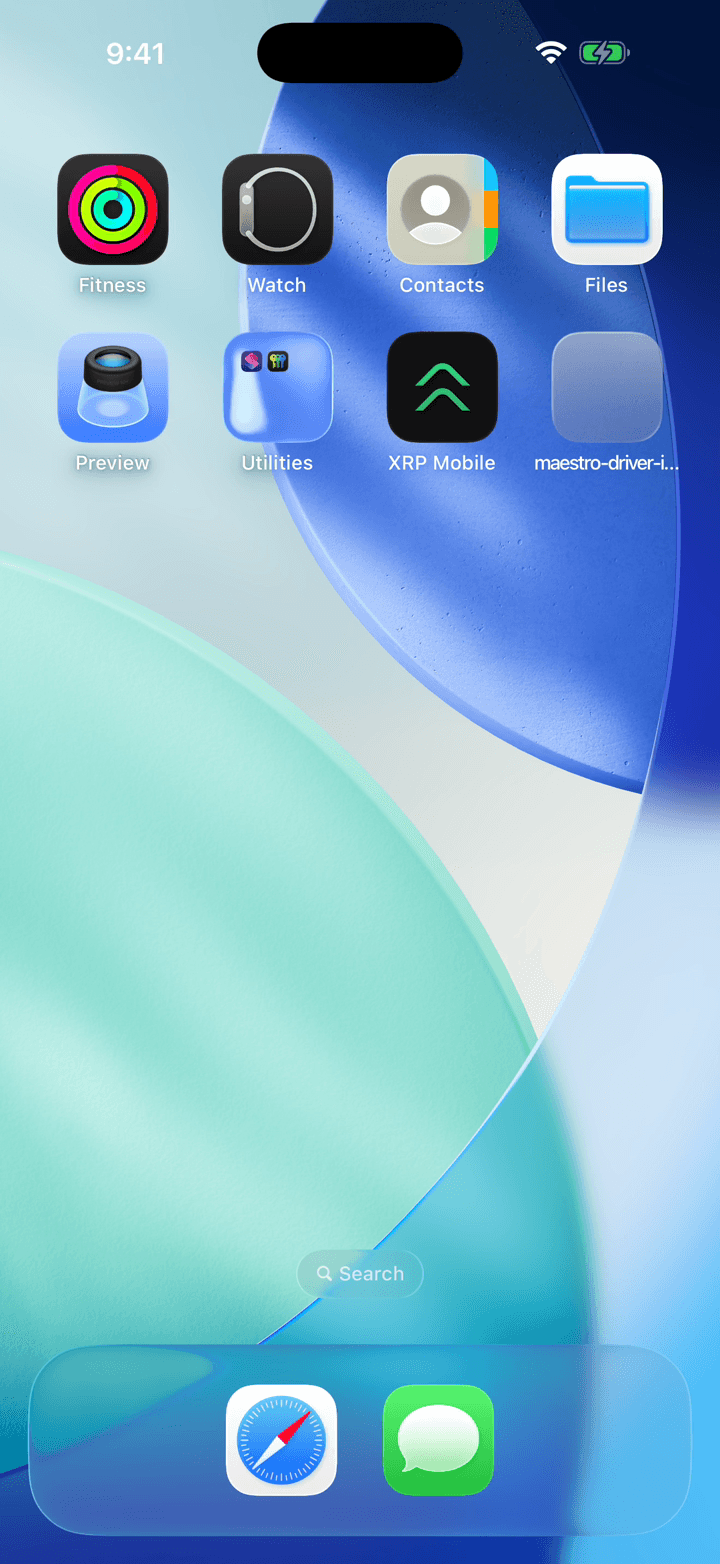
Now close it properly and open it again. The wallet locks the moment it leaves the screen, which is what makes this worth doing.
5. It opens with a glance
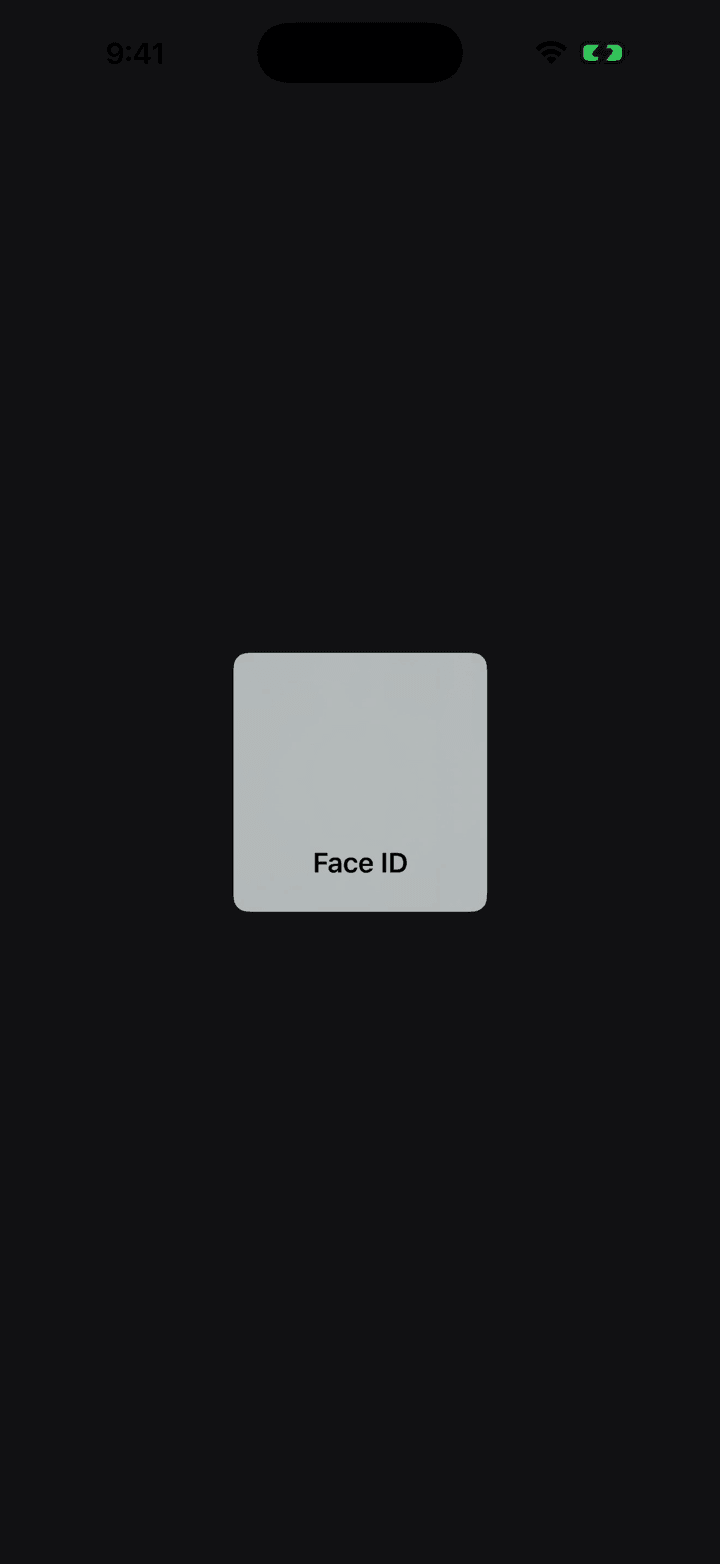
And you are in, without typing anything. Your PIN still works whenever the face fails, so you are never locked out of your own money.
Change your PIN
Short XRP Mobile tutorial: change your wallet PIN from Settings, Security. The app asks for your current PIN before it lets you set a new one, so nobody holding your unlocked phone can change it blind. The new PIN unlocks the app and signs every transaction from then on.
Wipe XRP Mobile from this phone
Short XRP Mobile tutorial: remove your wallet from a device with Delete data, in Settings under Security. It wipes the wallets, keys and PIN from that phone. Your funds are untouched because they live on the XRP Ledger, not on the device, but without your recovery phrase nobody can restore the account afterwards.