Import your Xaman account with secret numbers
Step by step XRP Mobile tutorial: import an existing XRP Ledger account using the 8 rows of secret numbers that Xaman gives you as a backup. Type the rows in order, watch each one validate its own checksum, set a device PIN, and the account comes back with the same address and balance. Never share your secret numbers with anyone.
If your XRP account came from Xaman, your backup is not twelve words. It's eight rows of numbers, and XRP Mobile takes them exactly as they are.
Prefer to read? The steps below are the same walkthrough, 6 screens and 49 seconds of video.
1. Open XRP Mobile, tap Import wallet
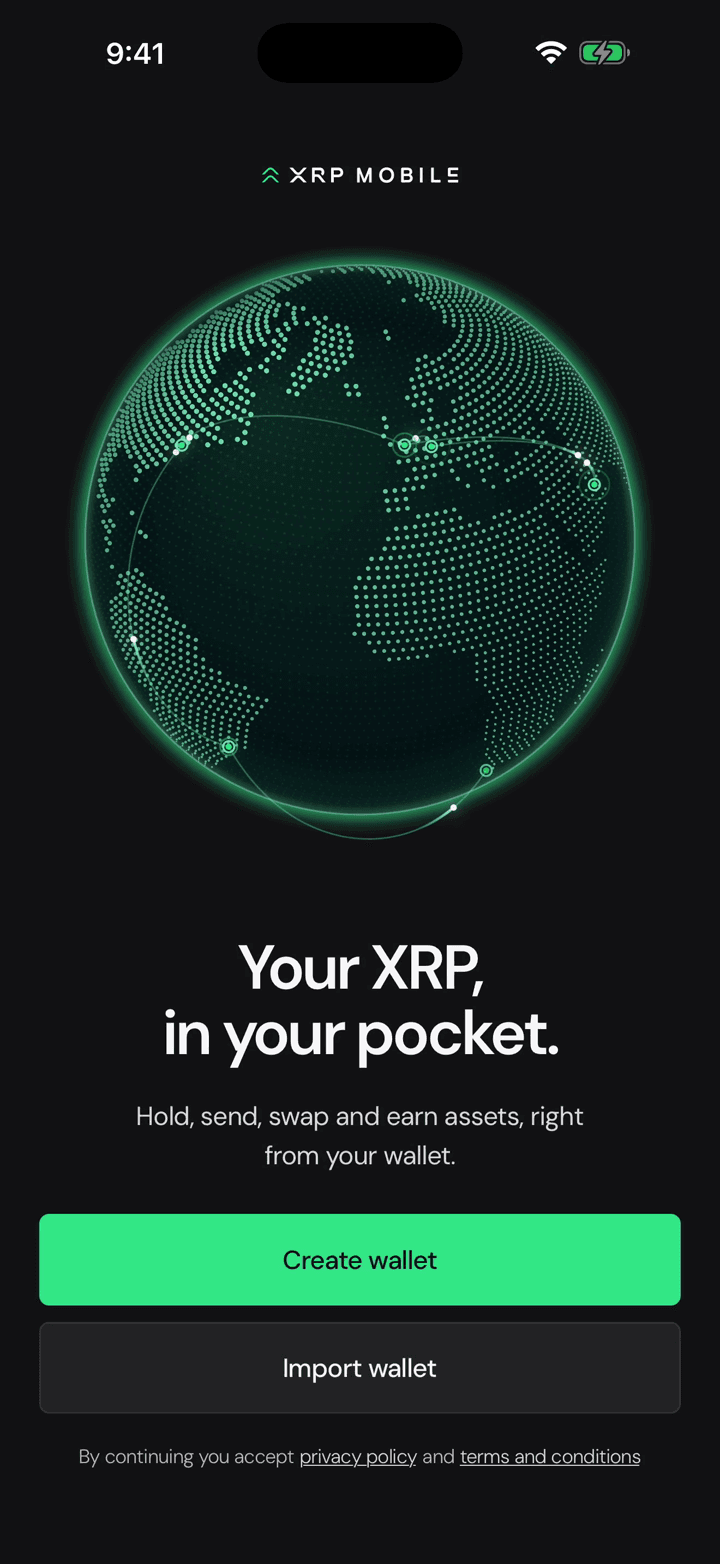
Open XRP Mobile and choose Import wallet. Nothing is created here: you are bringing back an account that already exists on the ledger.
2. Choose secret numbers
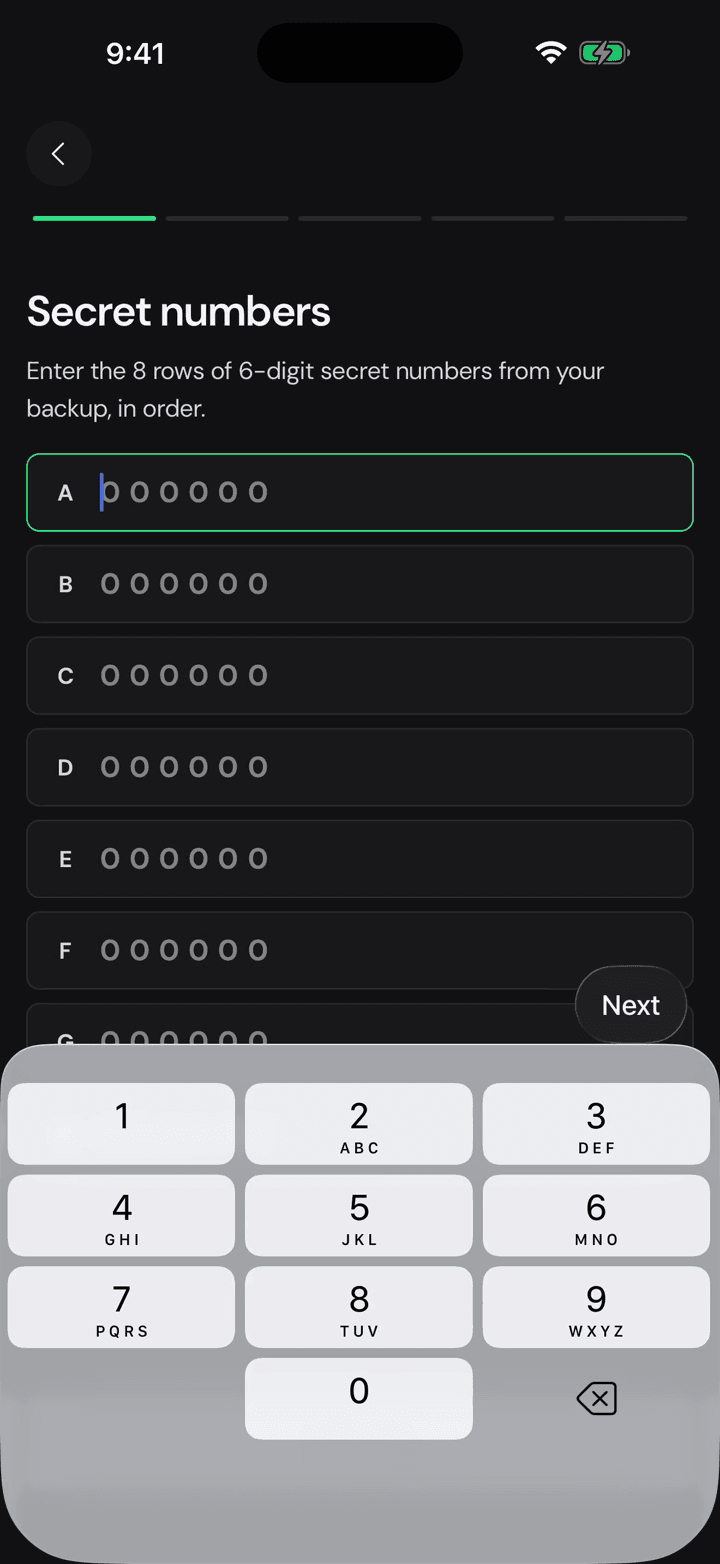
Pick secret numbers rather than recovery phrase. Same account either way, just the format your backup happens to be in.
3. Eight rows of six digits
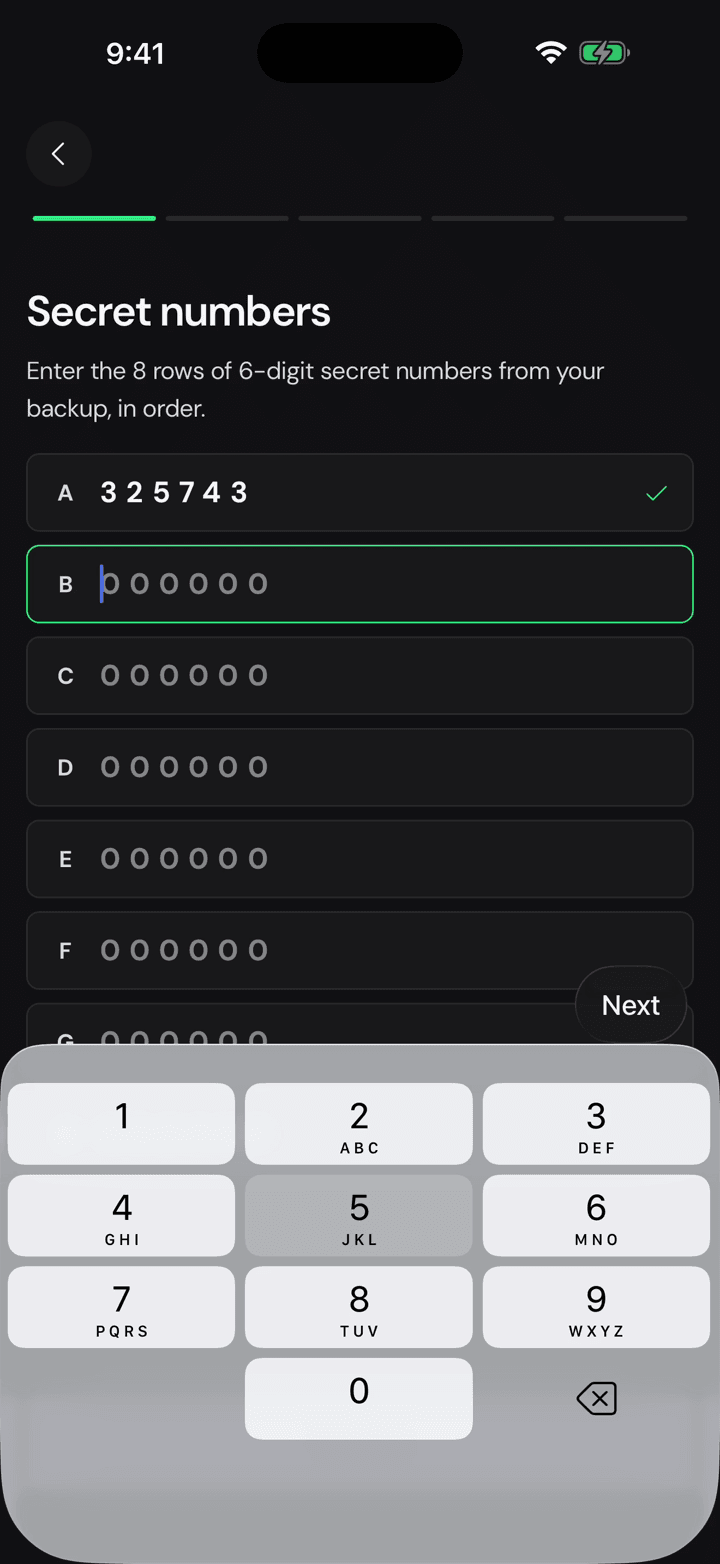
Type the rows in order, A through H. Six digits each, forty eight in total, and the keypad moves to the next row on its own.
4. Each row checks itself
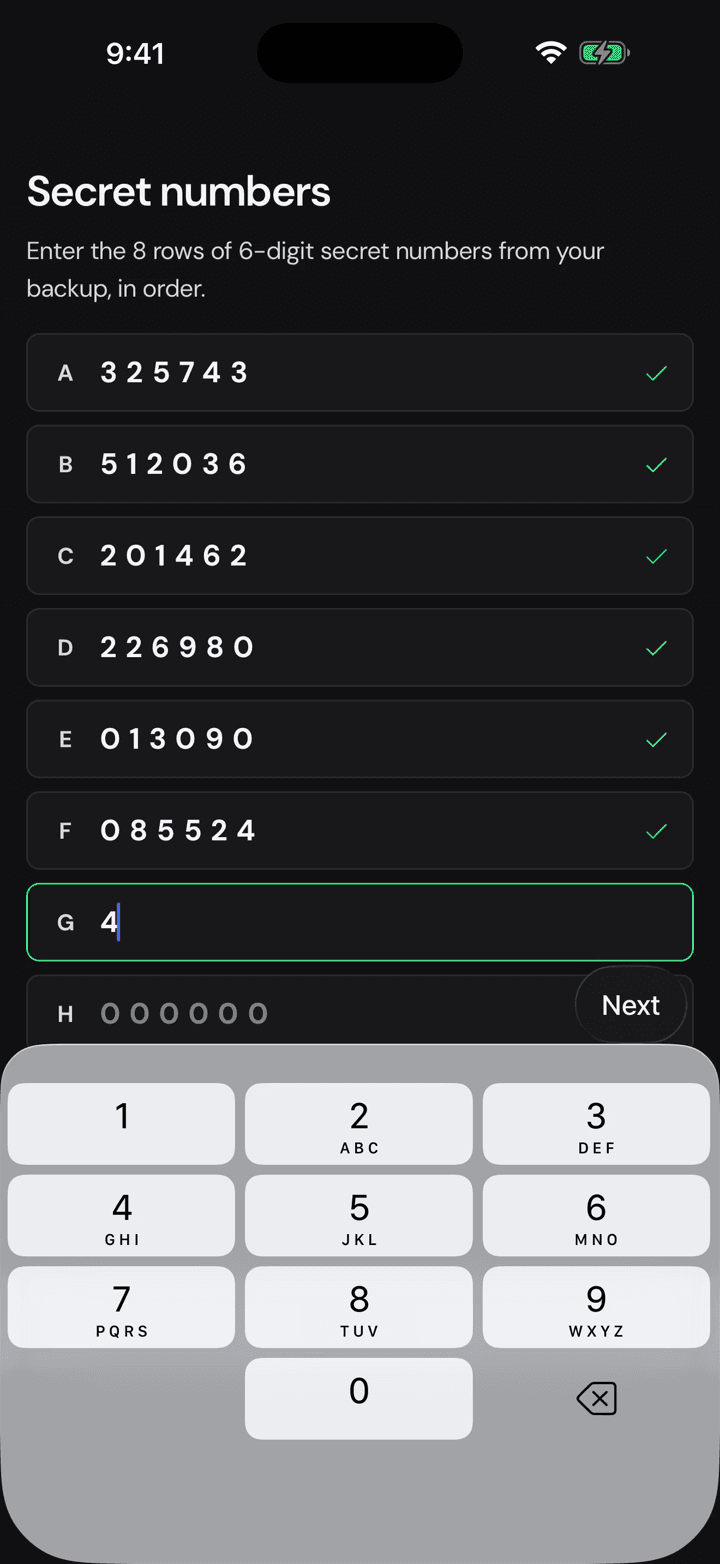
A green tick means that row's checksum adds up. If one refuses to go green, you have a digit wrong in that row and nowhere else, which is the whole point of the format.
5. Name it and set a PIN
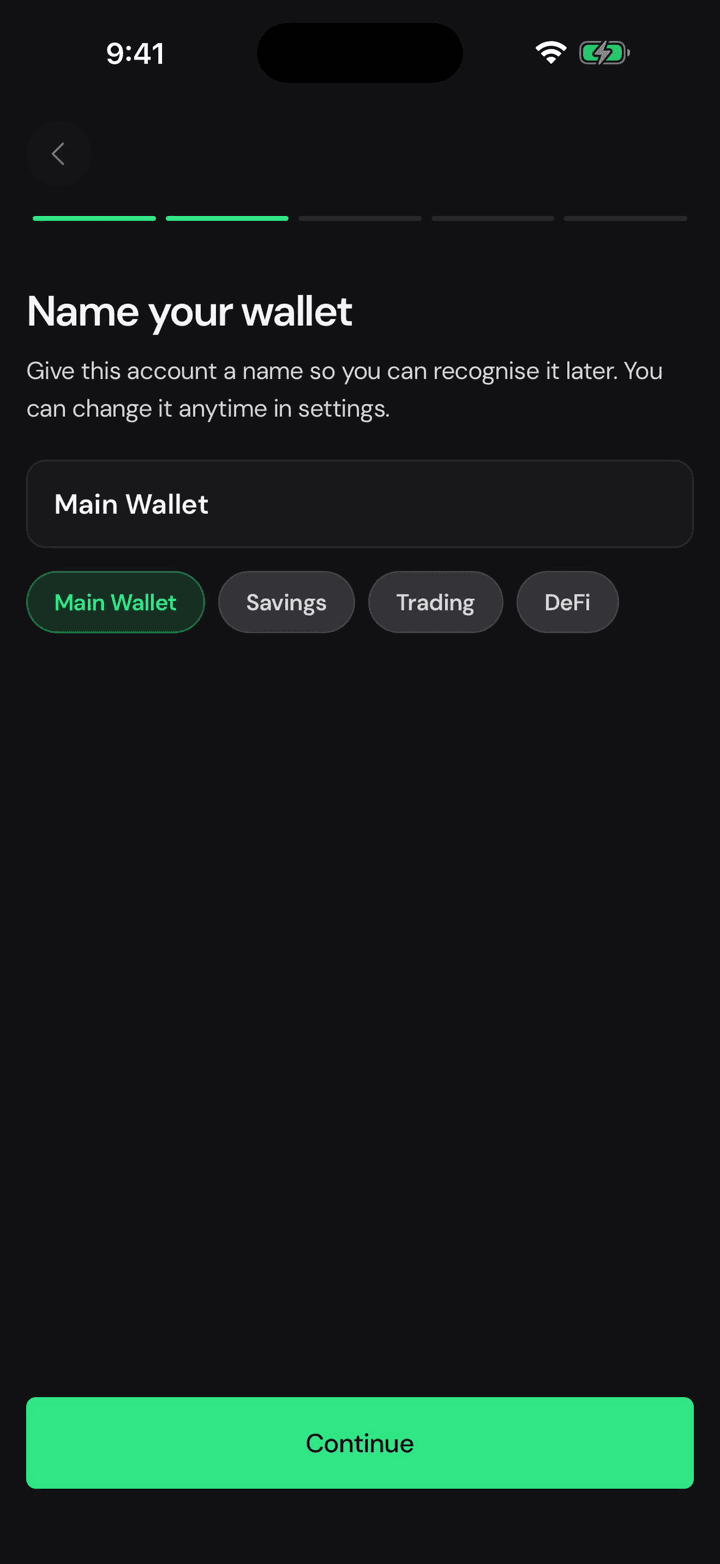
Then a name and a PIN for this phone. The PIN is local: it guards the app on this device, it is not part of your account.
6. Same account, back
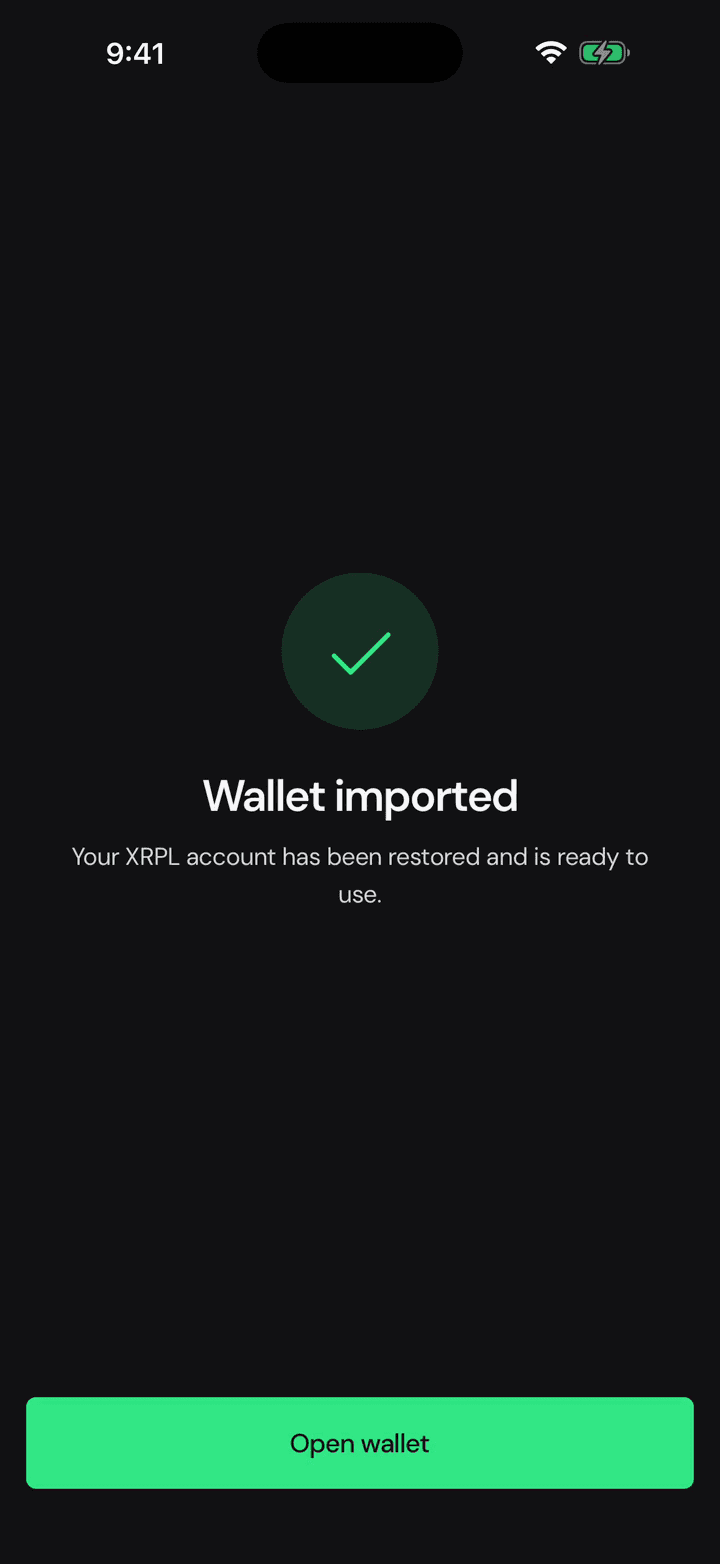
And your account is restored. Same address, same balance, and your secret numbers never left the phone.
Import a wallet with your recovery phrase
Step by step XRP Mobile tutorial: import an existing XRP Ledger wallet using its 12 word recovery phrase. Type the words in order or paste them, name the wallet, set a device PIN, and your account comes back with the same address and the same balance. The keys stay on your phone, and the PIN is local to the device.
Add a second wallet
Short XRP Mobile tutorial: add another wallet from the home carousel. Create a brand new one or import an existing one, keep balances separate, and switch between them with a swipe. Creating an extra wallet is the one place the app lets you choose between a 12 word recovery phrase and 8 rows of secret numbers.