Change your default currency
Quick XRP Mobile tutorial: change the app's default currency from Settings and watch every balance follow. The selector shows each currency's code, name and symbol, and the search matches names too, so switching takes seconds. Your holdings never change, only what they are priced in.
Tired of converting in your head every time you open your wallet? Put your own currency on the balance instead, and watch everything you hold follow it.
Prefer to read? The steps below are the same walkthrough, 6 screens and 48 seconds of video.
1. This wallet prices in dollars
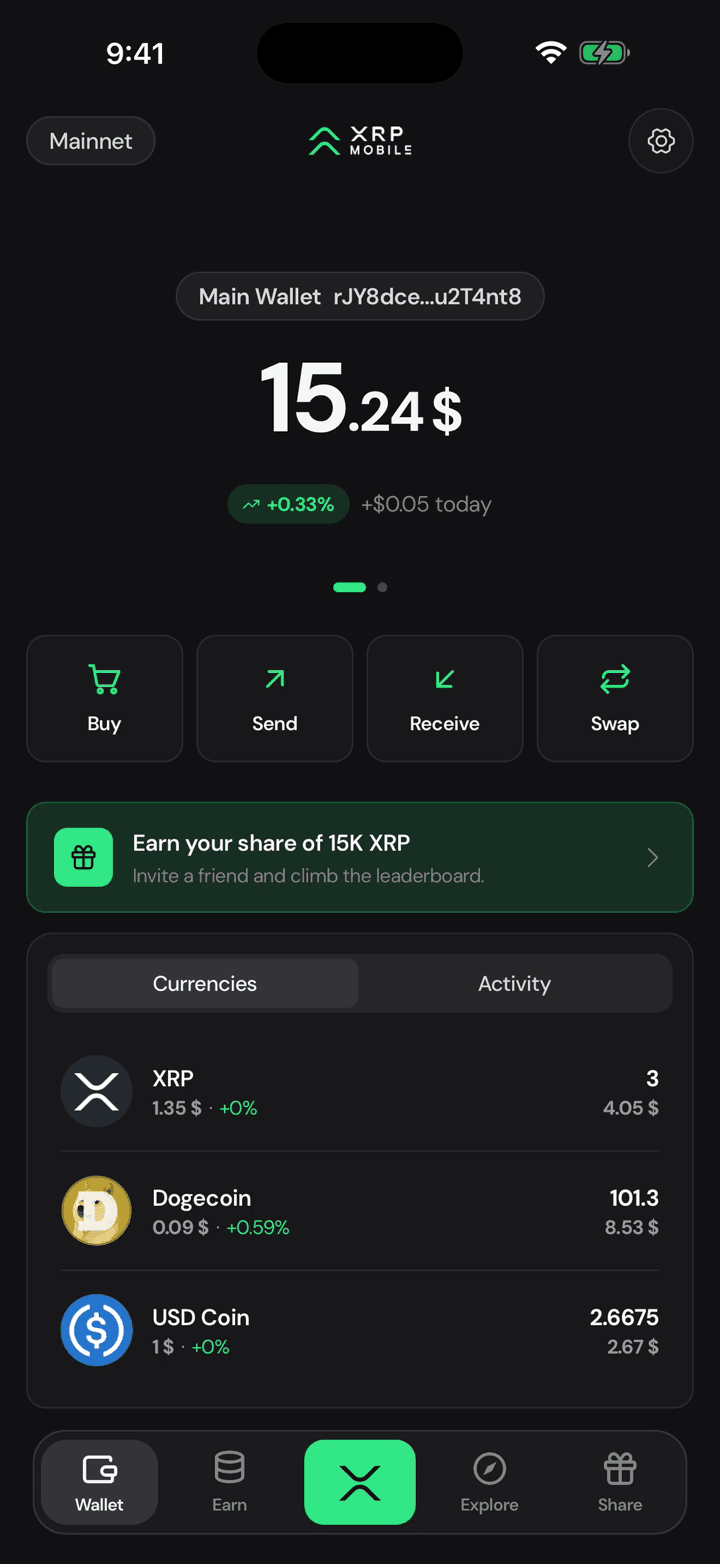
Here is a wallet holding XRP, Dogecoin and a stablecoin, and every one of them is priced in US dollars. Say dollars are not your money.
2. Open Settings
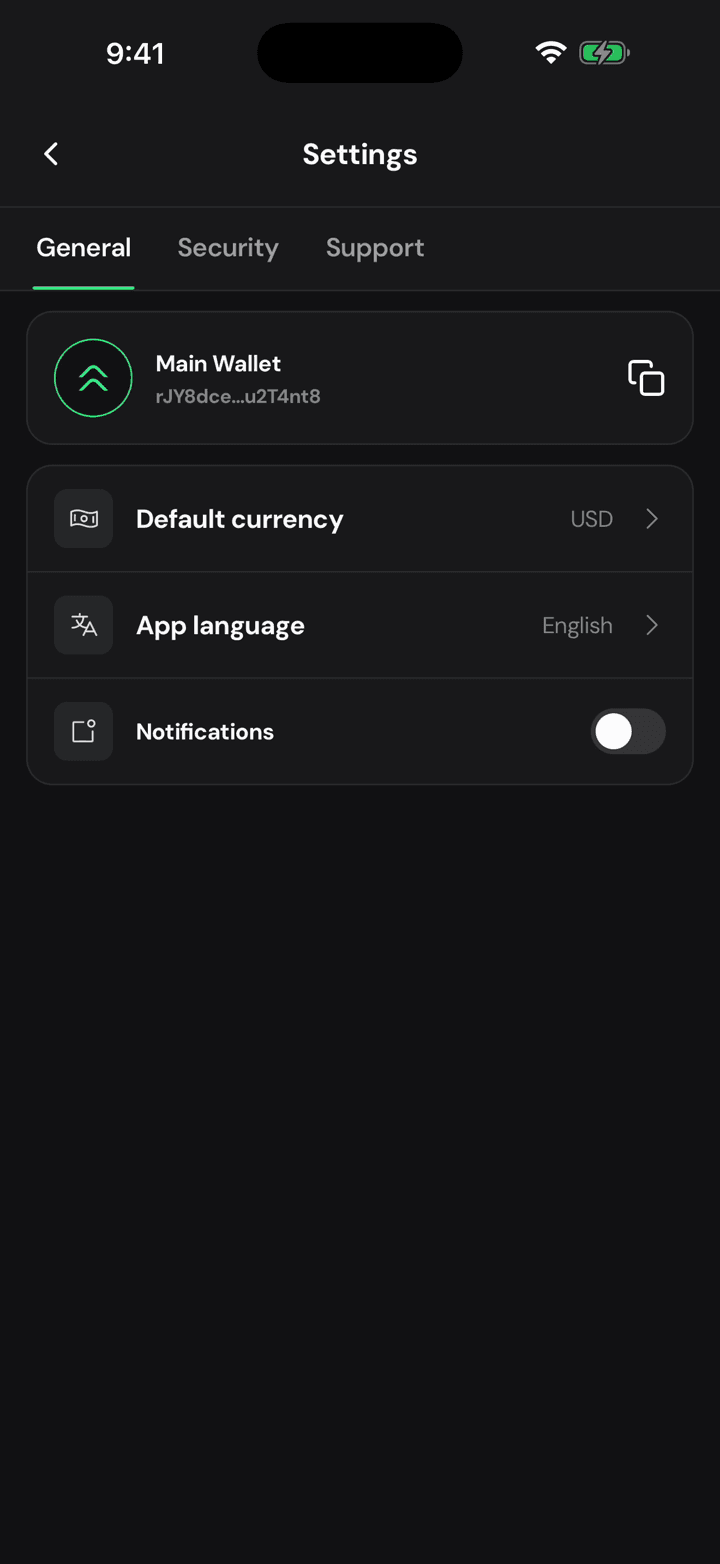
Tap the gear. Everything that changes how the app looks to you lives under General, and the current currency is right there on the row.
3. Code, name and symbol
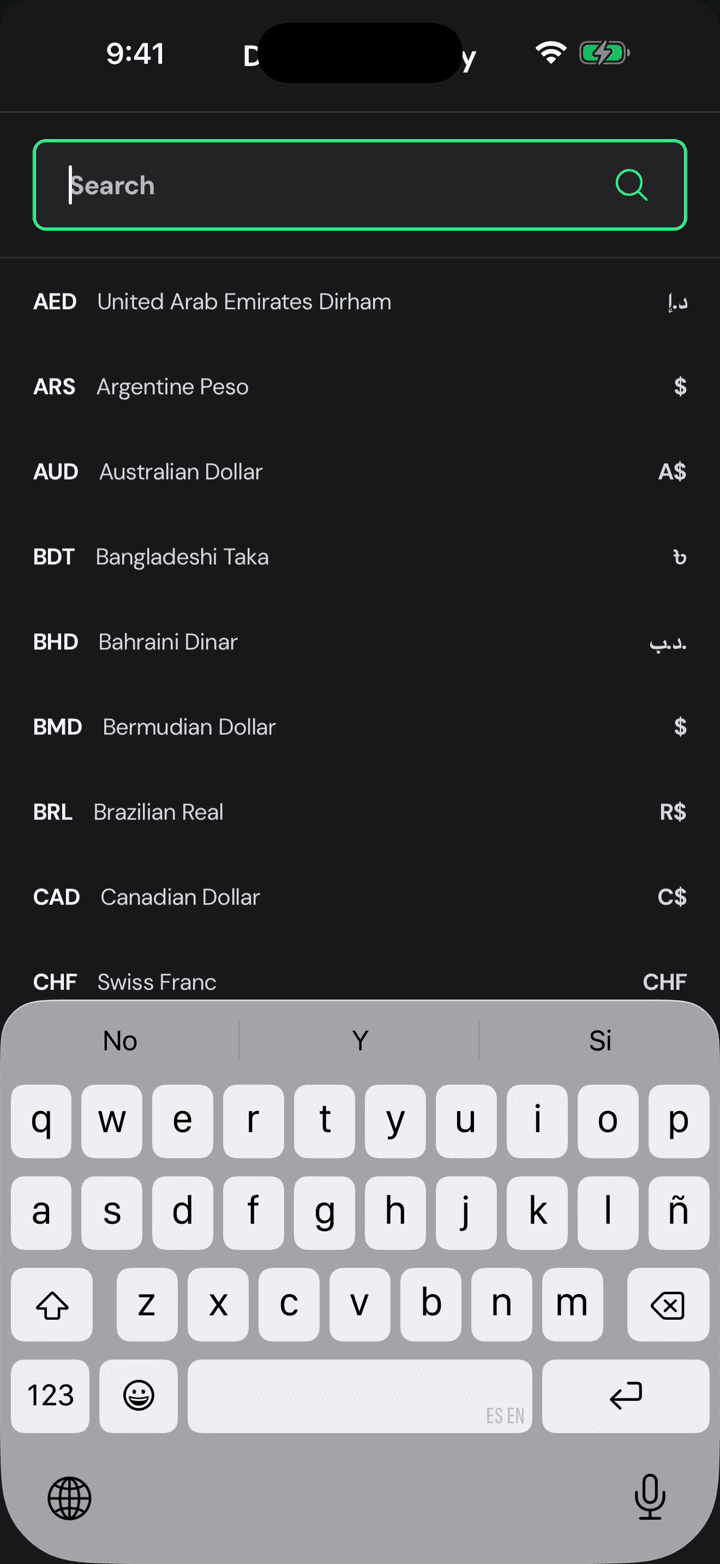
Each row gives you the code, the name and the symbol, so there is no guessing between the dozens of currencies that share a dollar sign.
4. Search by name, not just code
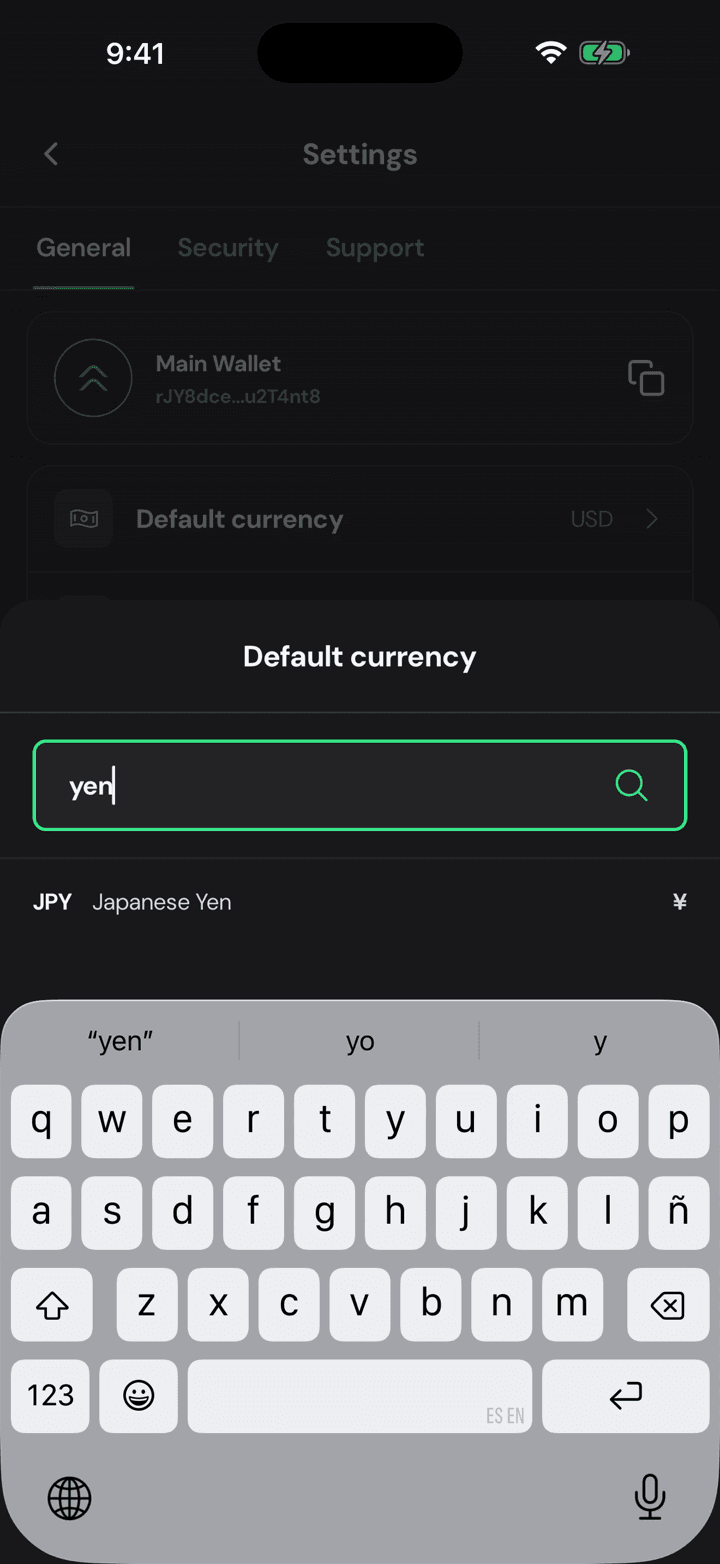
The search matches names too. Type yen instead of J P Y and it still finds it. Tap the one you want.
5. Back to the balance
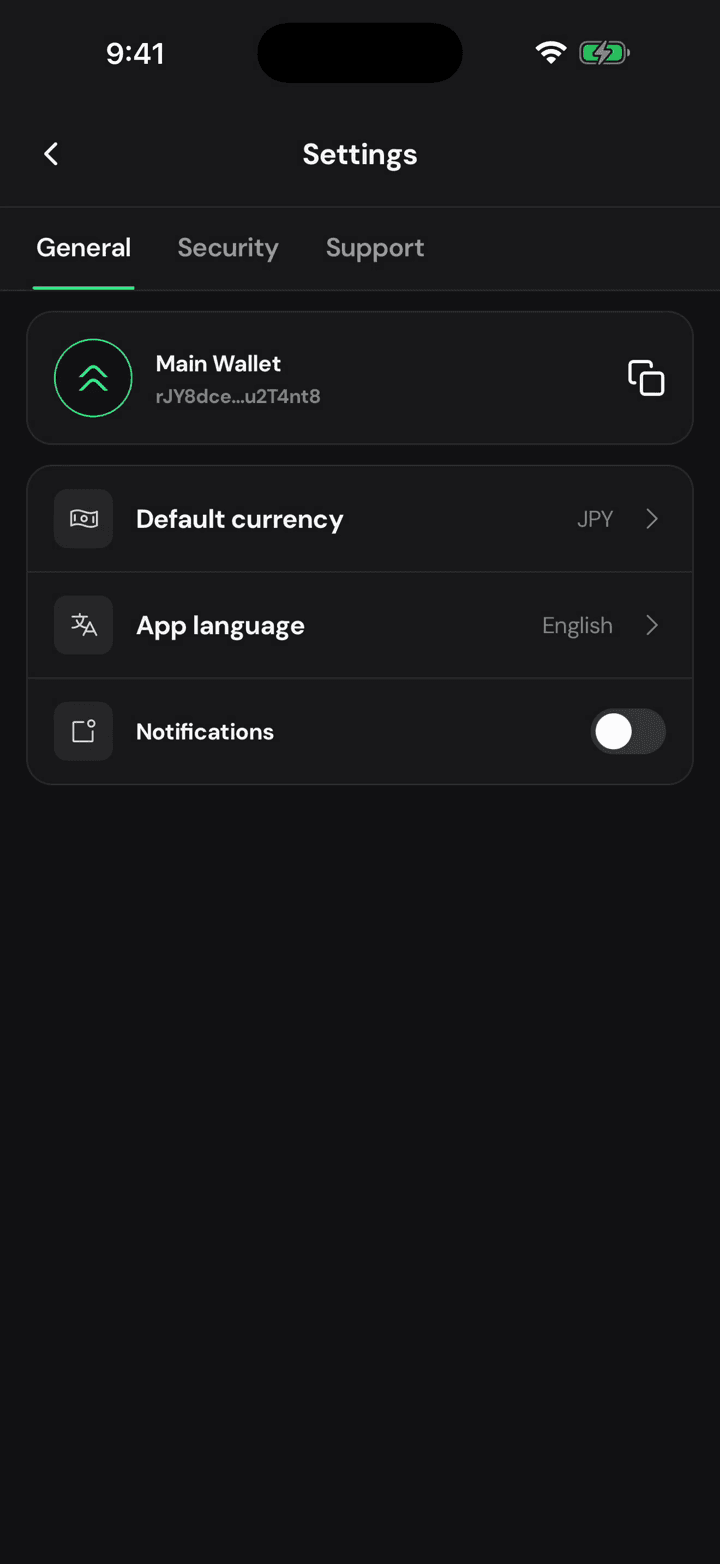
And this is the part worth seeing: go back to your wallet.
6. Everything follows
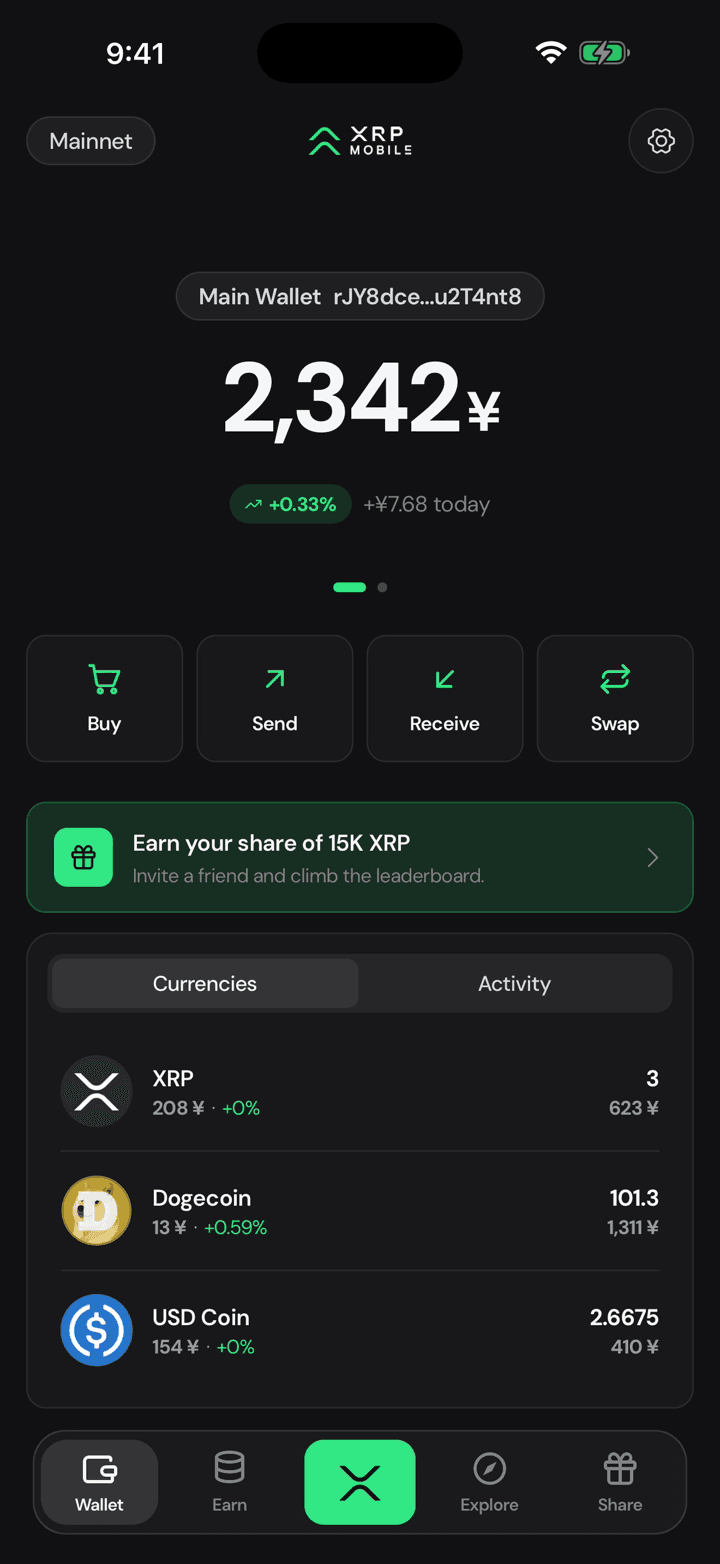
Same coins, same amounts, priced in yen. Your holdings never changed: three XRP is still three XRP. Only the money you read them in did.
Earn is on the way
A short look at the Earn tab in XRP Mobile. There is no yield product yet: the tab shows what we are building towards, self custody yield with no lock ups, and the two pools we would start from, XRP and RLUSD. Nothing is confirmed and no rate is promised. Turn on the notification to hear about it first.
Switch the app language
Short XRP Mobile tutorial: change the app language from Settings. XRP Mobile ships fully translated in 13 languages, and the switch is instant. Your wallet, your keys and your balances are untouched.